Chapters
On this page
Everything in this chapter is a tool rather than a record of a shot. Some of it is reference data LoadOut ships and attributes; some is your own bookkeeping, kept deliberately out of the way. None of it is on the bottom bar. These are the screens you open when you need them, not the ones you live in.
Where the tools live
Two doors, dividing on one question: is this your data, or is it reference?
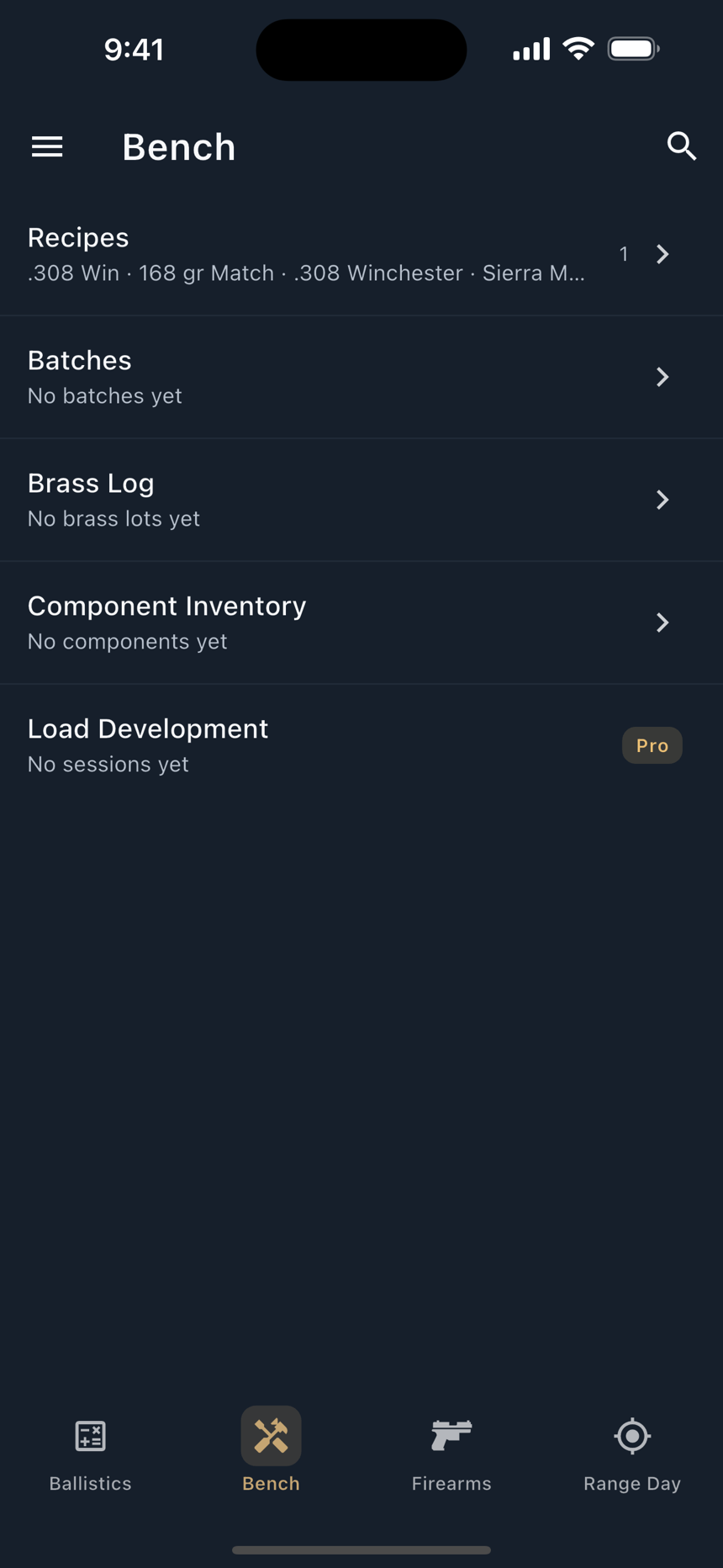
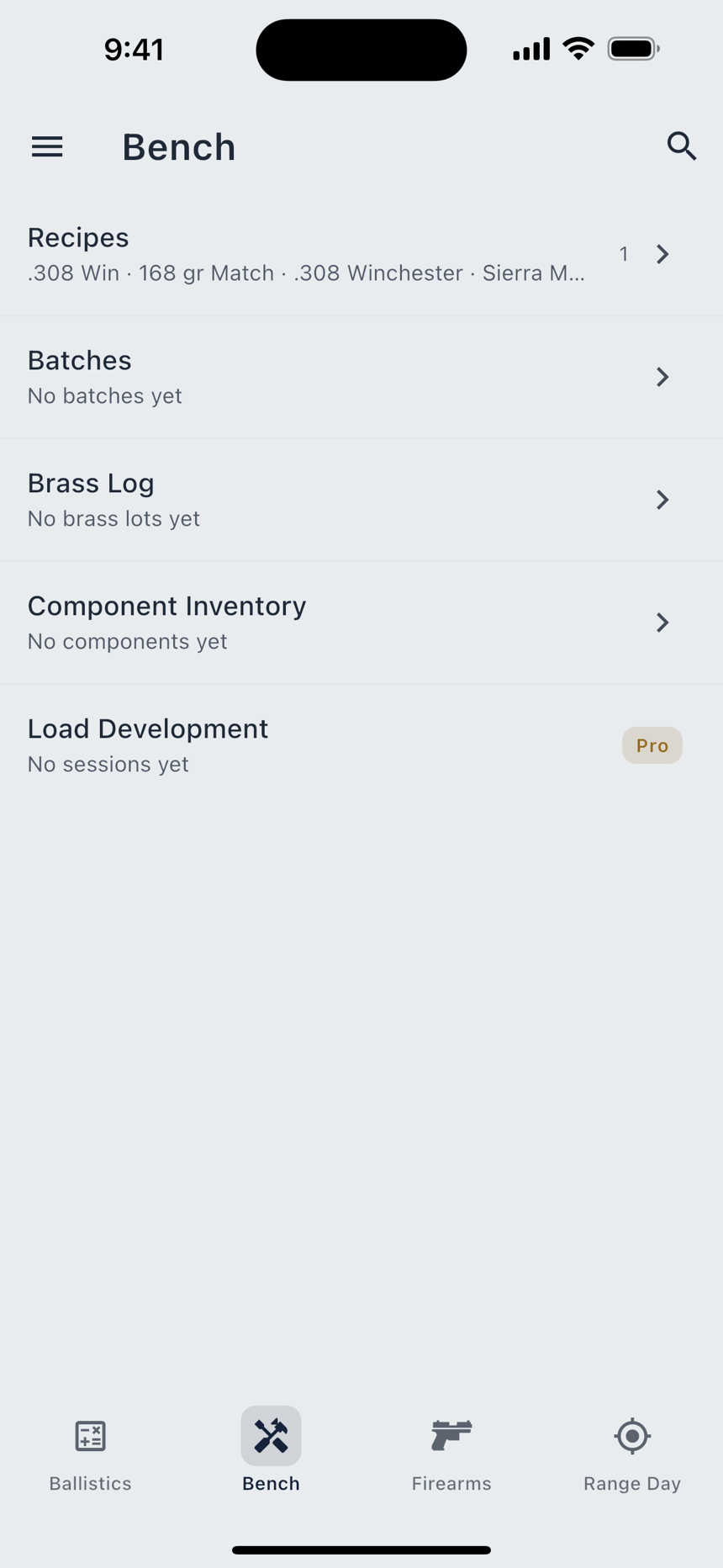
The Bench is the third bottom-bar tab and holds your own records: Recipes, Batches, Brass Log, Component Inventory, and Load Development Pro. Each row carries a live count, or a line saying it is empty.
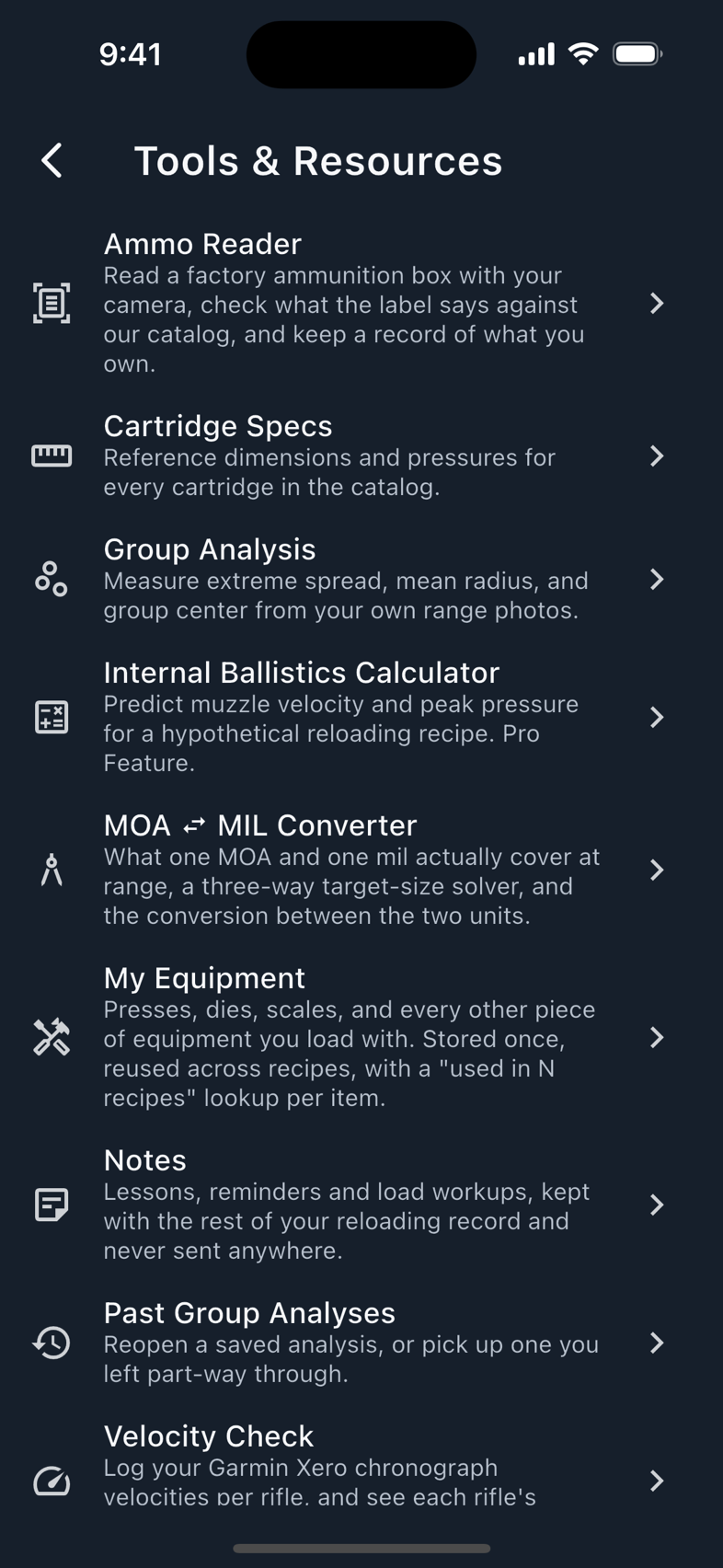
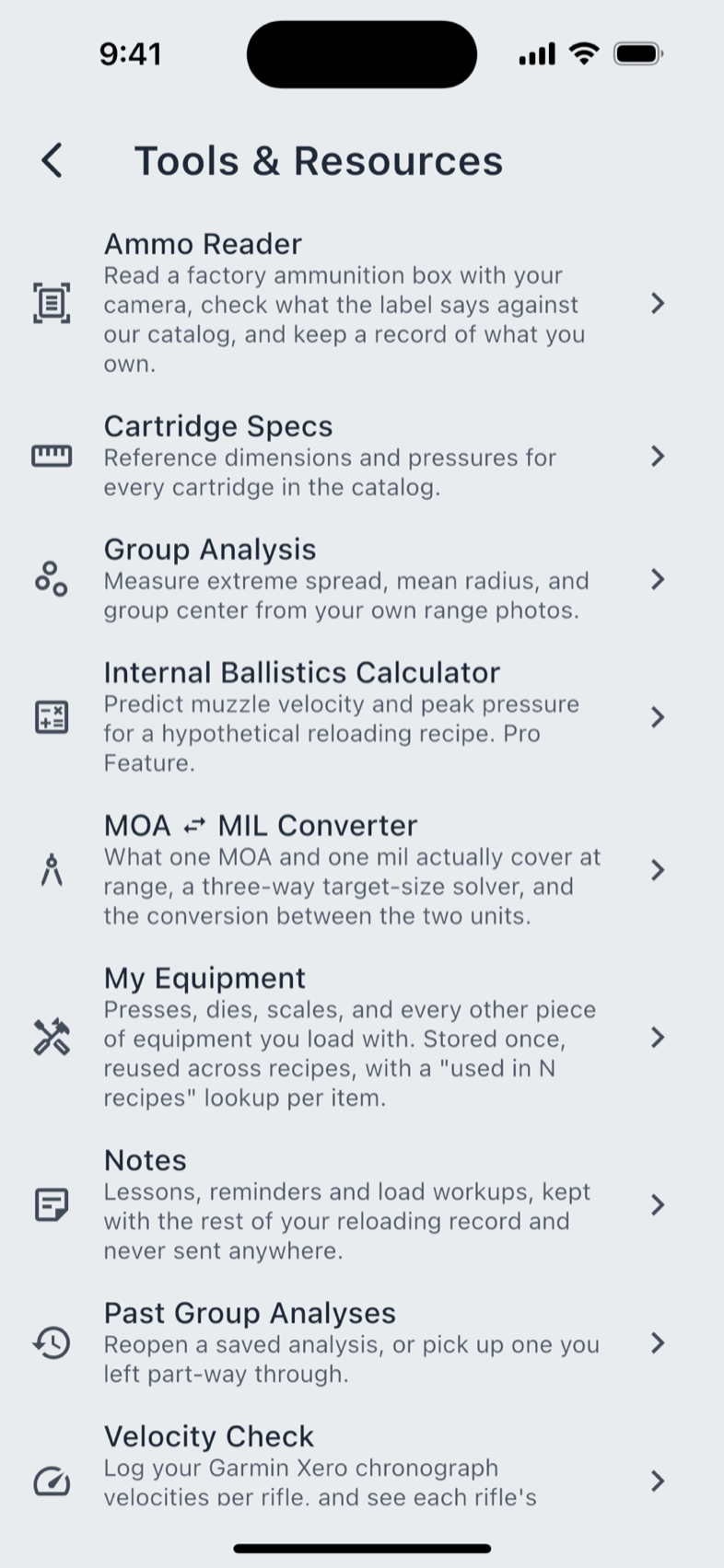
Tools & Resources is a side-menu row. Its tiles sort alphabetically at render time, so this is the order you see:
| Tile | What it is |
|---|---|
| Ammo Reader | Read a factory ammunition box with your camera, check the label against the catalog, keep a record of what you own. |
| Cartridge Specs | Published dimensions and pressures for every cartridge in the catalog. |
| Group Analysis | Extreme spread, mean radius and group centre, from a photo of your own target. |
| Internal Ballistics Calculator Pro | An estimate of muzzle velocity and peak pressure for a load you have not fired. |
| MOA ↔ MIL Converter | What one MOA and one mil cover at range, a three-way target-size solver, and the conversion between them. |
| My Equipment | The presses, dies and scales you load with, stored once and reused. |
| Notes | Lessons, reminders and load workups, kept with the rest of your record. |
| Past Group Analyses | The history of everything Group Analysis has measured. |
| Velocity Check | Your Garmin Xero velocities per rifle, and each rifle's velocity trend over time. |
Learn and Announcements are side-menu rows of their own, above Tools & Resources; Data Sources & Credits sits at the bottom of Settings. Ammo Reader, Group Analysis and Velocity Check use the camera, so they are phone and tablet features. The rest of this chapter works on every platform.
Cartridge Specs
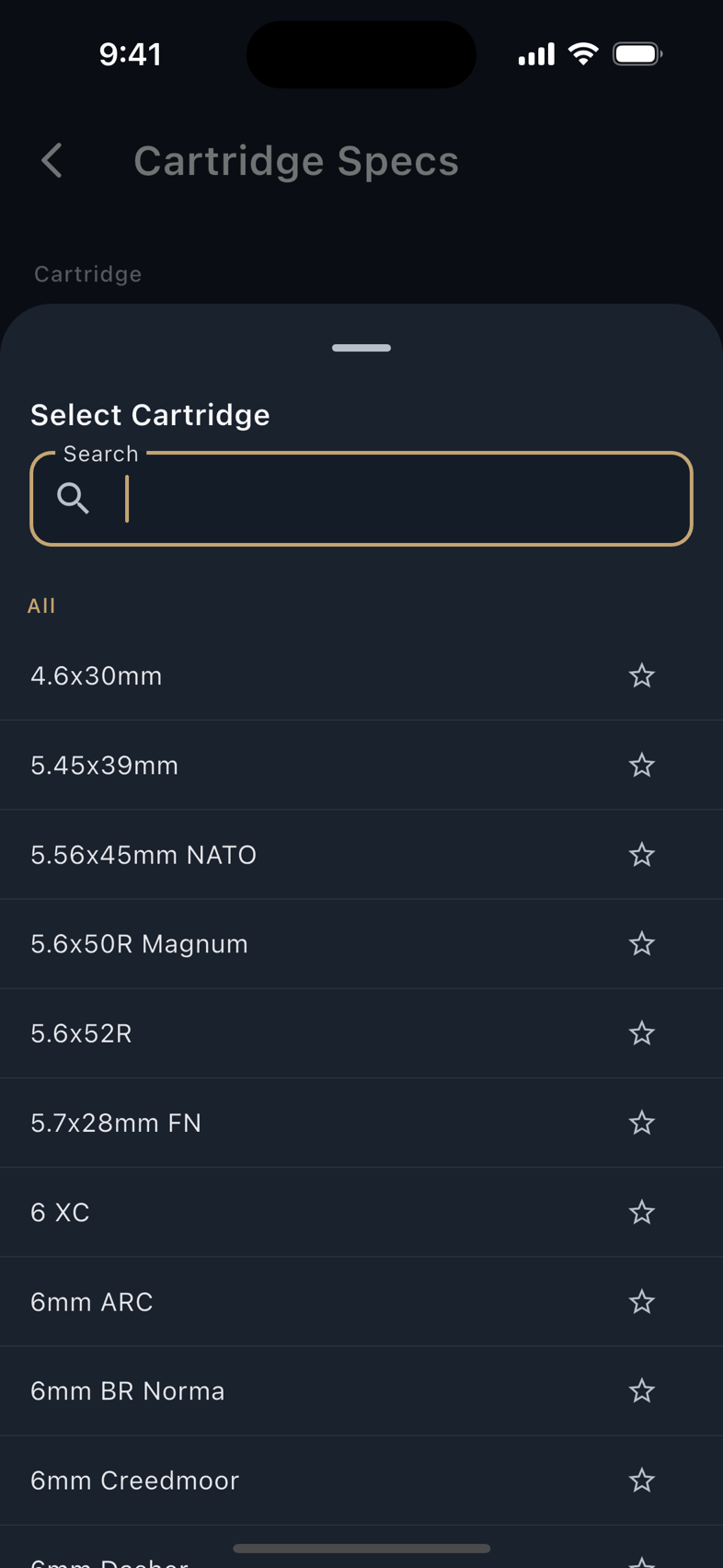
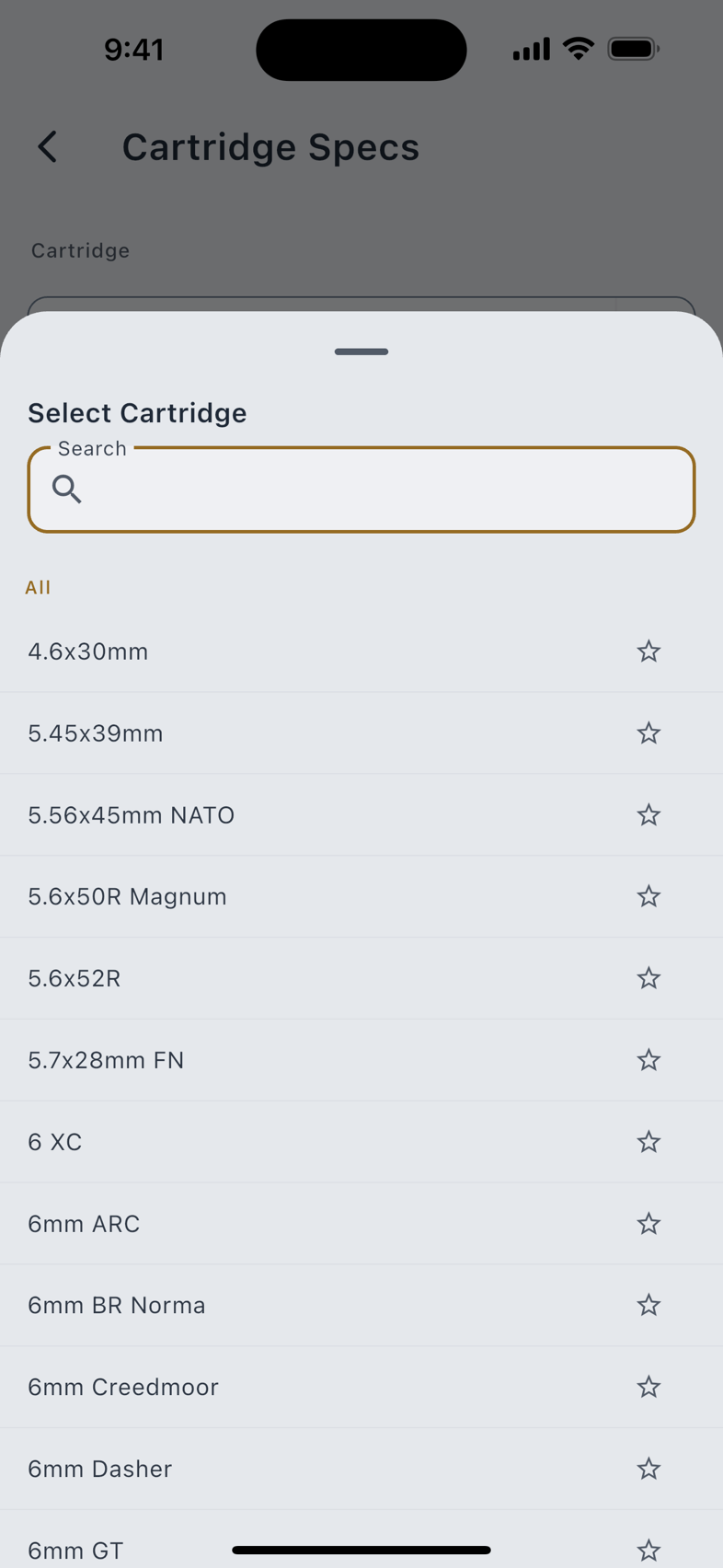
Reference dimensions and pressures for 249 cartridges, drawn from the published U.S. and European sporting-ammunition standards. Search is fuzzy across names and aliases, so 6 GT finds 6mm GT, and Favorites Only narrows the list to what you have starred. Pick one and the detail page is grouped the way a drawing is:
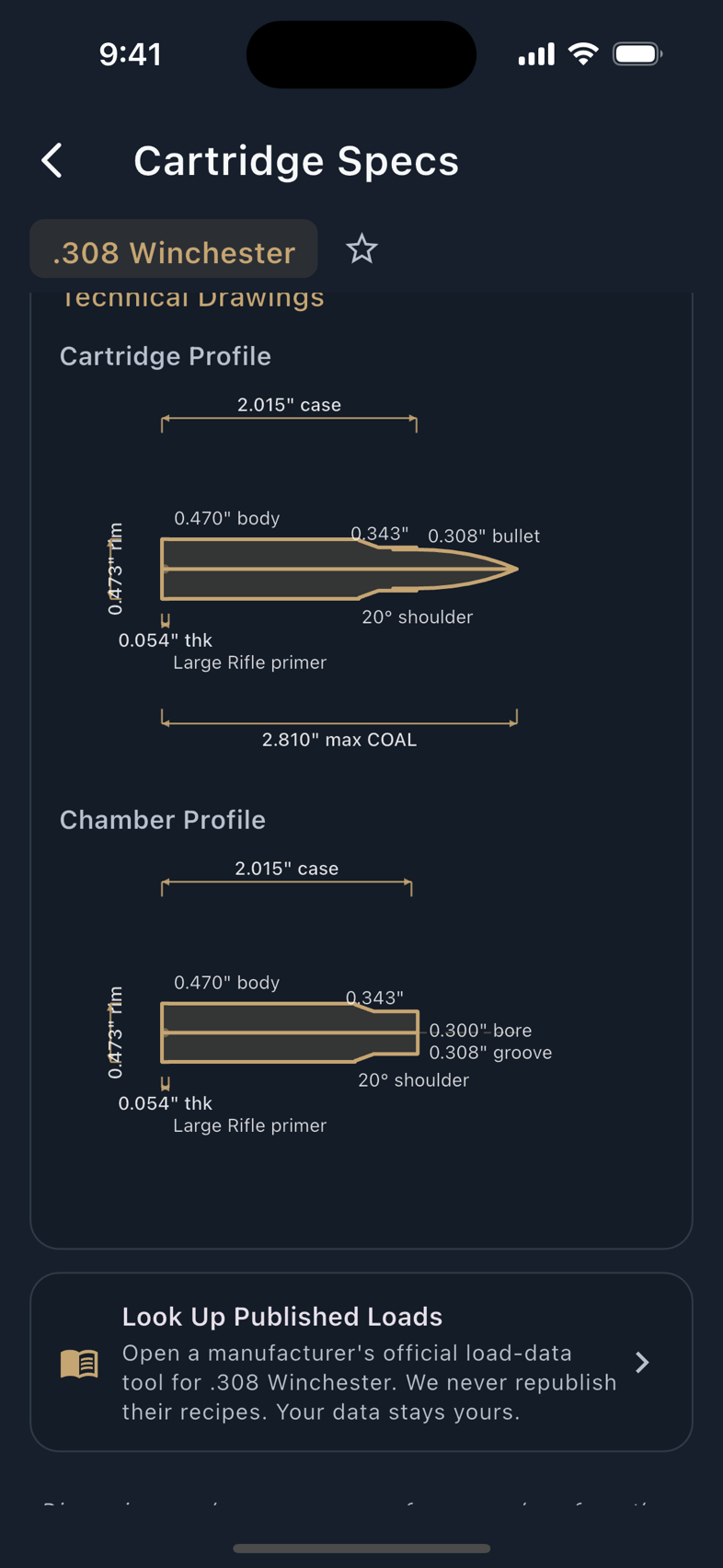
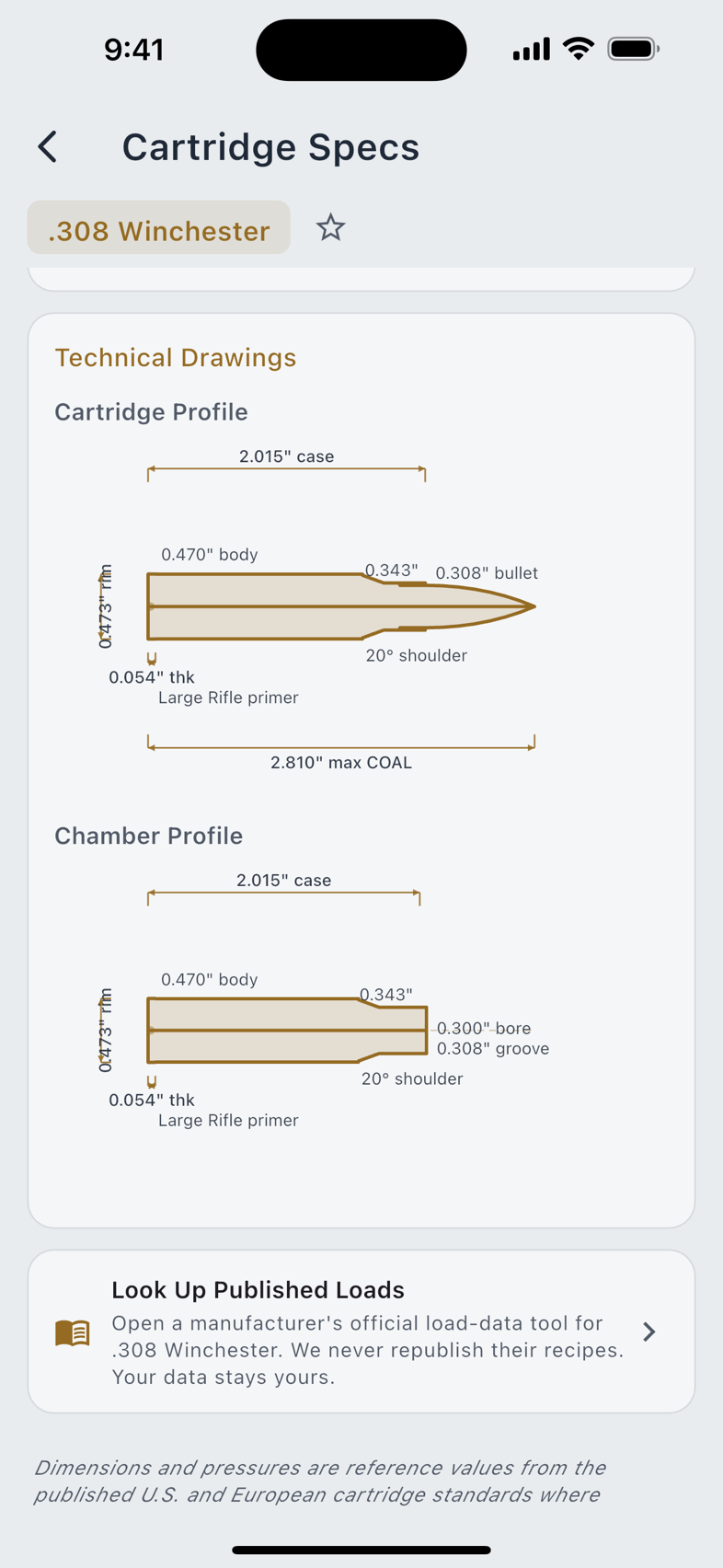
A cartridge with a parent case says so, and one with aliases carries an Also Known As block. At the foot of the page sits Look Up Published Loads, which opens a manufacturer's own official load-data tool for that cartridge in your browser. LoadOut never republishes anyone's load tables, and the cartridge you tapped never leaves the app.
The figures are published standards rather than LoadOut's measurements, and the drawings are generated from those dimensions rather than copied. LoadOut is not affiliated with, sponsored by or endorsed by any standards body. With Siri Voice Commands on, the Cartridge Specs command reads a single dimension or pressure out loud without opening the app. See Voice & AI.
Component Inventory
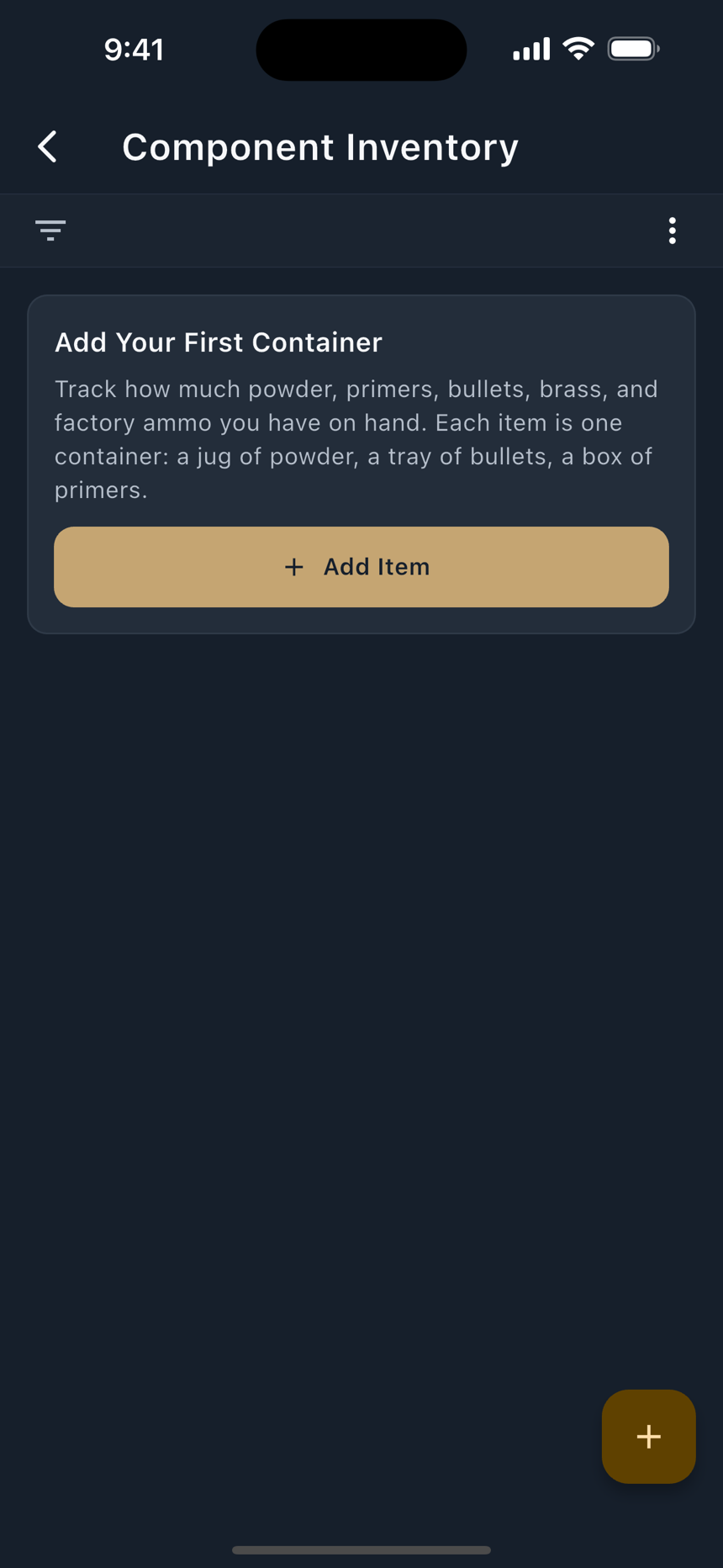
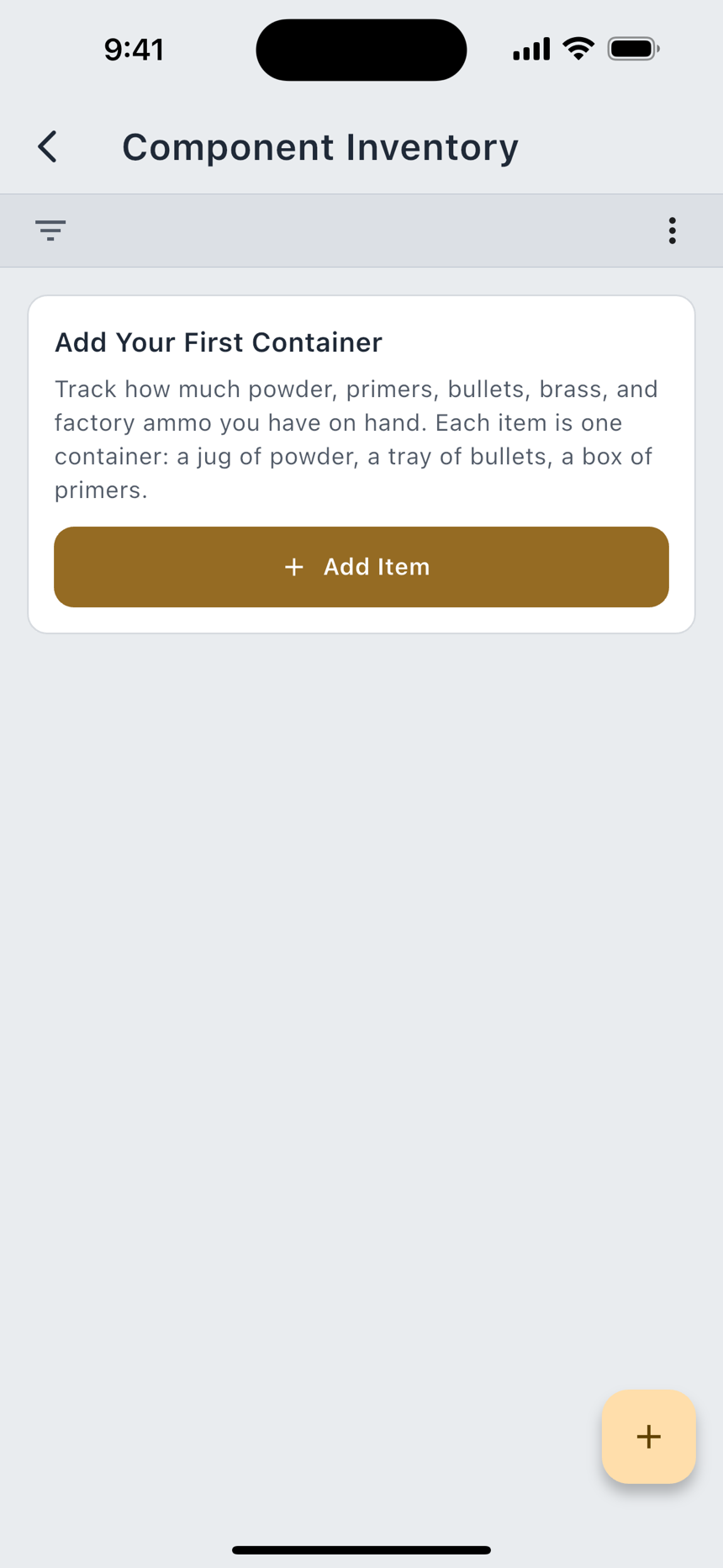
On-hand counts for the consumables on your shelf. Free, uncapped, and reached from the Bench tab rather than from here.
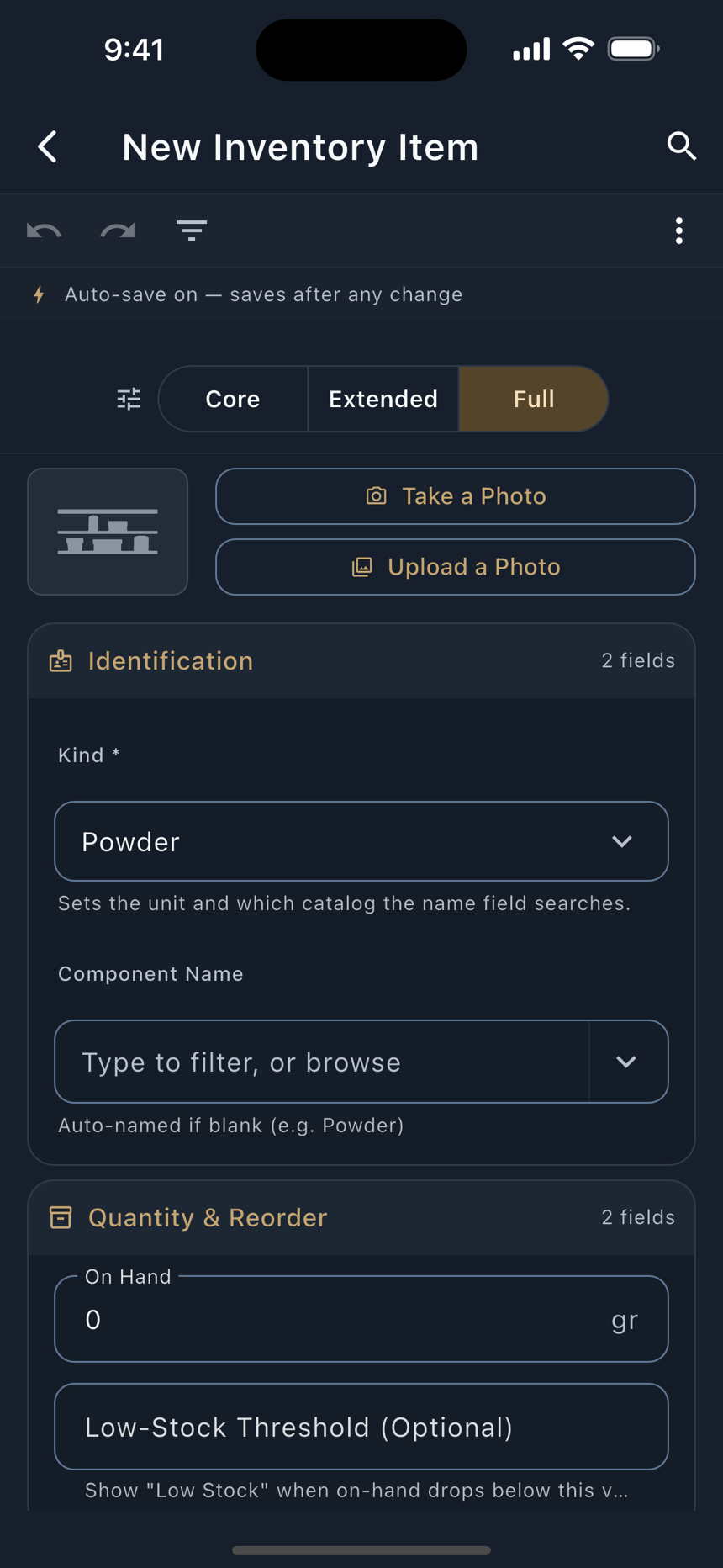
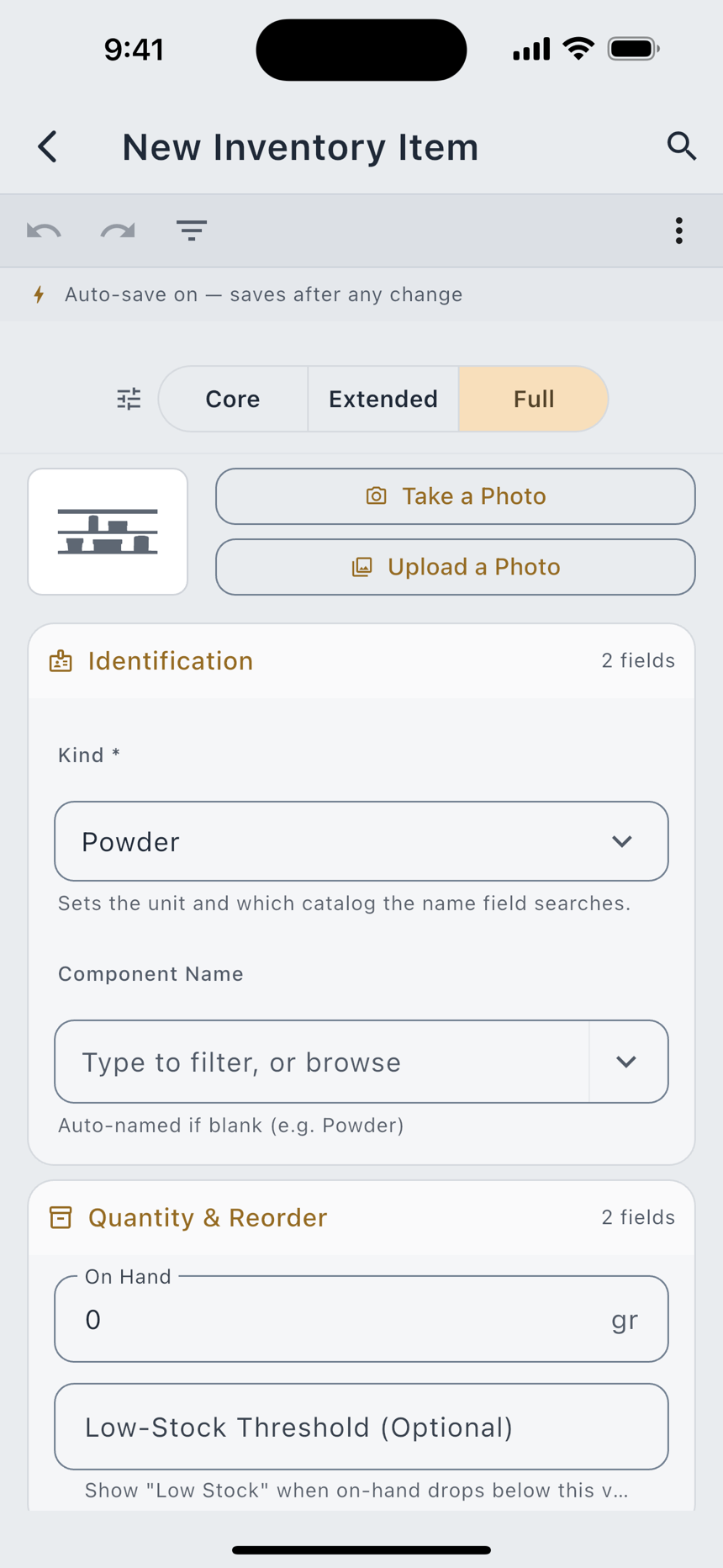
Five kinds ship by default, and three more appear once the Shotgun Information facet is on. Each kind carries its own unit, derived from the kind rather than typed:
| Kind | Counted in |
|---|---|
| Powder | Grains |
| Primer, Bullet, Brass | Count |
| Factory Cartridge | Rounds |
| Hull, Wad | Count, with the Shotgun facet on |
| Shot | Pounds, because shot is bought and kept by weight; with the Shotgun facet on |
An item carries Kind, Component Name, On Hand, Low-Stock Threshold, Unit Cost, Lot / Batch Number, Opened On and Notes; everything after the first three is optional. Set a threshold and the list marks that item Low Stock when it drops below it. Leave it blank and nothing is flagged.
- Open the item, then tap Quick Adjust. The dialog opens on two tabs: Adjust and Recount.
- Adjust when you know the change. Subtract and Add set the direction and the field reads Change: fifty rounds loaded, fifty primers off the count.
- Recount when you know the total. The field reads New Quantity. Use it when you have actually counted the box.
- Add a note if the reason matters. Note (Optional) is stored with the adjustment, not the item.
Every change writes a row to the item's adjustment log, whichever tab made it, and the log keeps the real delta even when the running total was clamped at zero. The audit trail records what happened rather than what the total could hold. Mark Opened stamps the date you broke the seal on a powder jug and writes a zero-delta entry, so the log shows when without pretending anything was consumed.
Inventory is not deducted automatically when you complete a batch. The batch form saves as you type, so an automatic deduction would fire on every keystroke, and the Record Firing dialog counts rounds fired rather than rounds loaded. Quick Adjust is the honest trigger.
My Equipment and Tools Used
The durable half of the bench: presses, sizing and seating dies, powder scales, neck bushings, expander mandrels, case trimmers, annealers, tumblers, chronographs, comparators, and an Other Equipment catch-all. Each item is stored once and carries a Spec line for the detail that matters: a bushing diameter, a die model.
Two doors reach the same data, running in opposite directions.
- Tools Used, on a recipe, is the forward door. It records which press, which dies, which scale produced that load, so the load's provenance travels with it.
- My Equipment is the reverse lookup. Each item shows a Used In list and a count of the recipes that name it. An item nothing has used yet says Not used in any recipe yet.
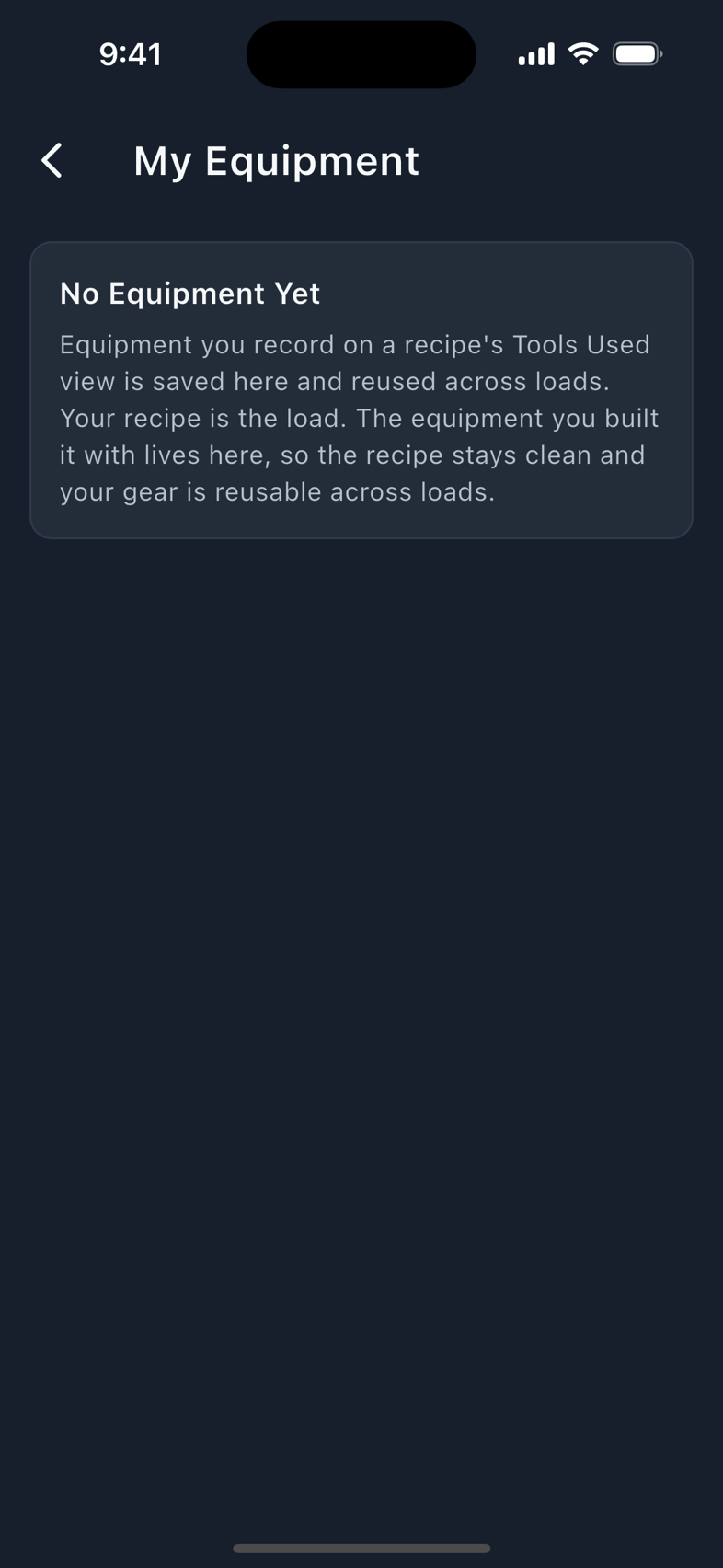
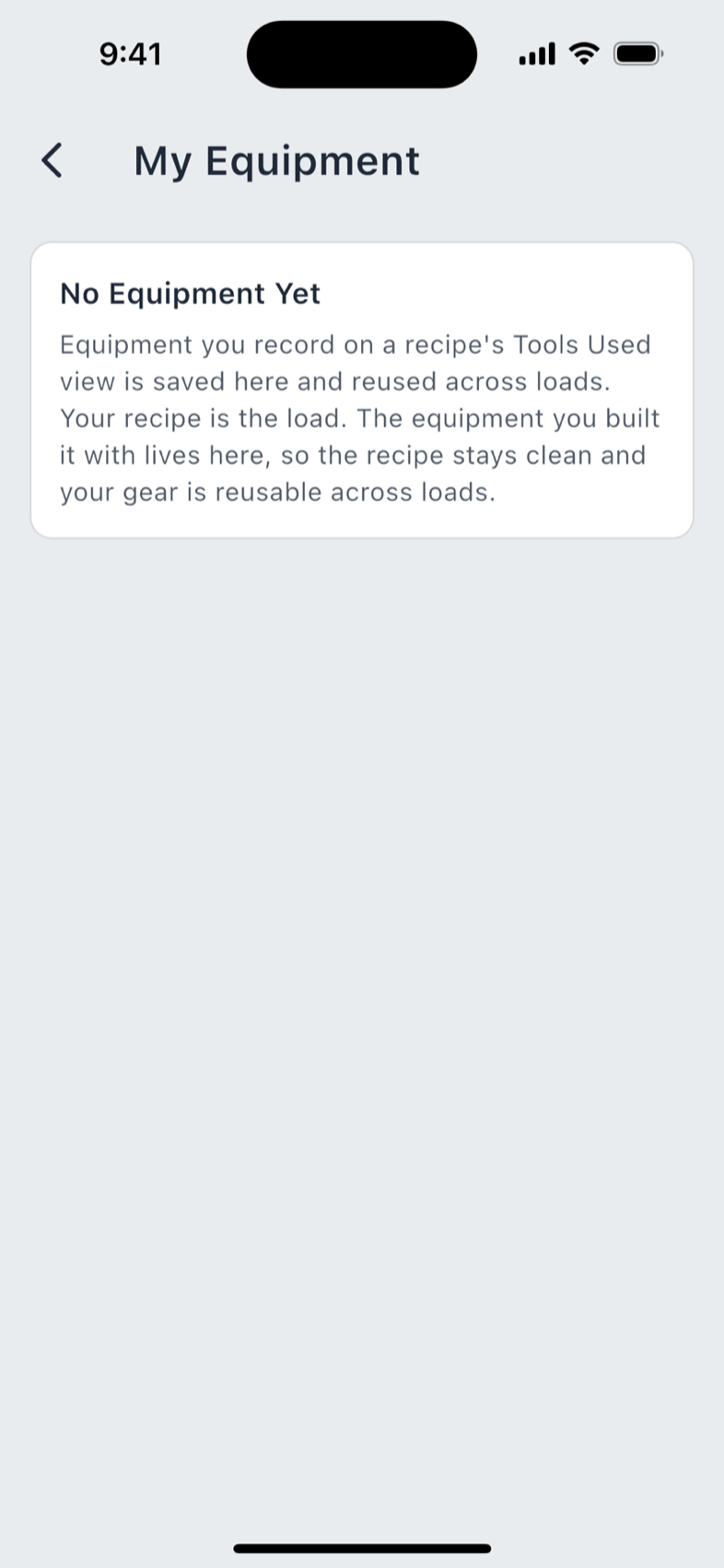
Items you added carry a Yours badge. Deleting one is not destructive: the confirmation says plainly that recipes which used it keep it, shown as removed, and the delete can be undone.
Internal Ballistics Calculator
Pro An estimate of muzzle velocity and peak chamber pressure for a load you have not fired. It is reached from Tools & Resources, and from the Ballistics screen's Don't Know Your MV? Predict It button when you have no chronographed number to enter.
A yellow banner sits at the top of the screen on every visit and cannot be dismissed. It reads:
Always verify against a published manual. The predicted peak pressure tends to read LOW. Treat it as a floor, not headroom; your actual peak is likely higher. Never add powder or exceed a published max because a prediction sits below it.
Take that at face value. The model was calibrated on mid-rifle loads, and where your inputs fall outside that band (a low loading density, a very slow powder, a magnum-pistol dual powder) the screen adds a named advisory saying which way the estimate is biased and telling you to cross-check a published manual. Those advisories matter as much as the numbers do.
What it asks for:
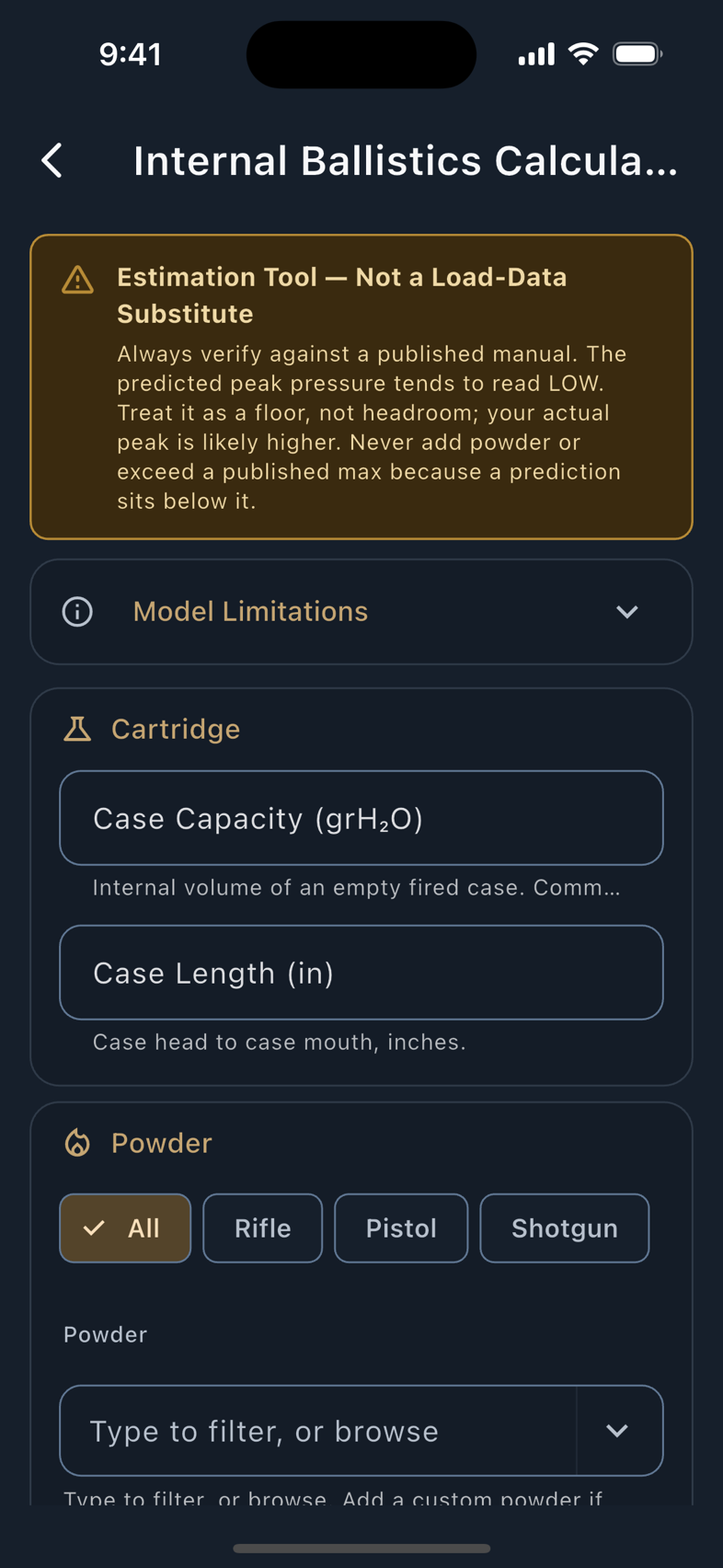
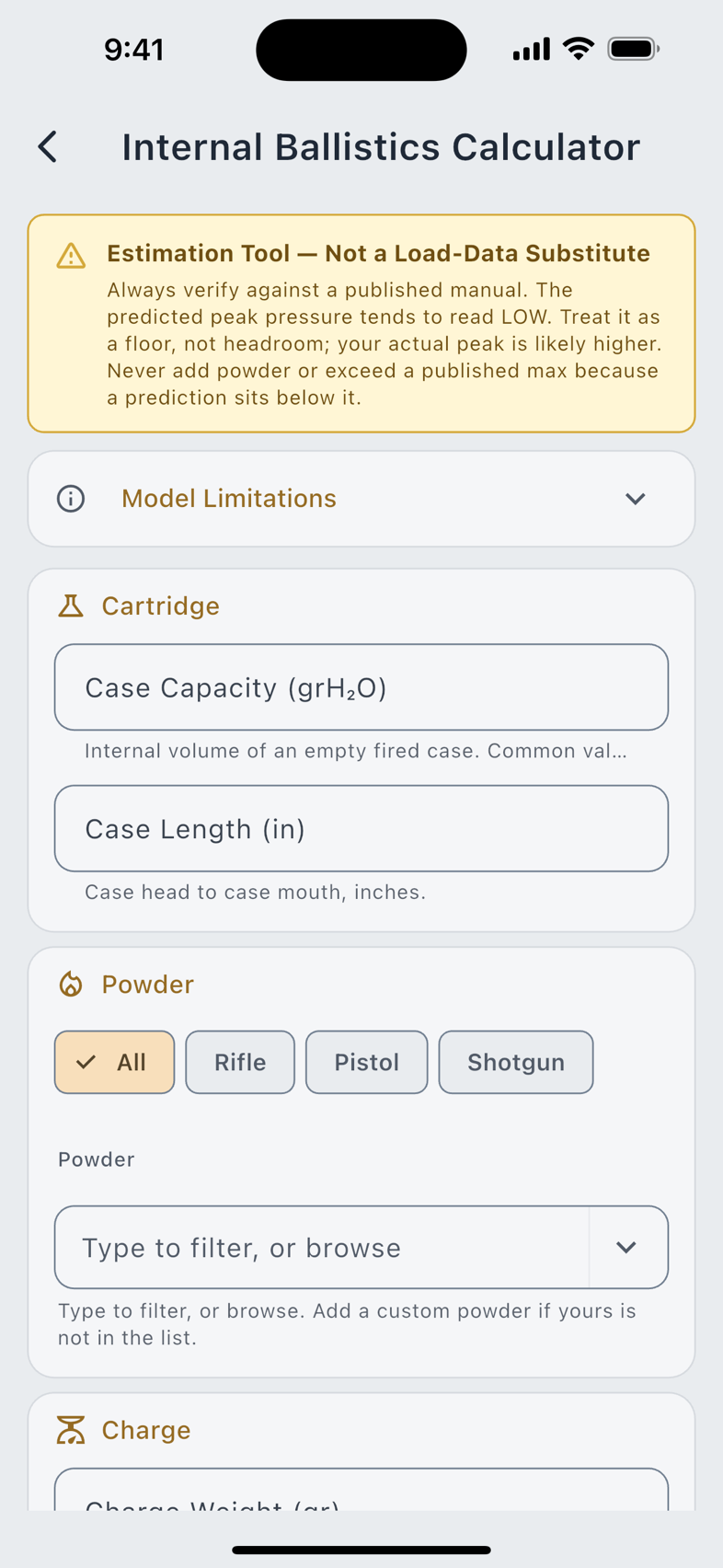
Predict Pressure & MV is always tappable, even with the form half-empty, which is more useful than a greyed-out button. The result area fills with exactly which fields are blocking, and each of them goes red at the same time. A powder you added yourself with no relative quickness recorded is listed the same way, as a missing input rather than modelled from a number nobody supplied.
The screen is stateless on purpose: it writes nothing to your database and keeps no result across visits. Change any input and the previous result clears at once, so a number on screen always belongs to the inputs beside it.
Glossary
157 terms across 10 categories: Cartridge Anatomy & Dimensions, Ballistics, Range Day & Shooting, Optics & Reticles, Load Development, Powder & Burn Behavior, Primers, Brass & Case Prep, Reloading Process and Firearm-Side. Two views, grouped by topic or straight A to Z, and a search across titles, acronyms and definitions rather than titles alone. Many entries carry a worked example with real numbers rather than a restatement of the definition.
The glossary is also the app's universal explainer: the tappable (?) glyph beside a field anywhere in the forms opens that field's term in a sheet, so you rarely have to come here on purpose.
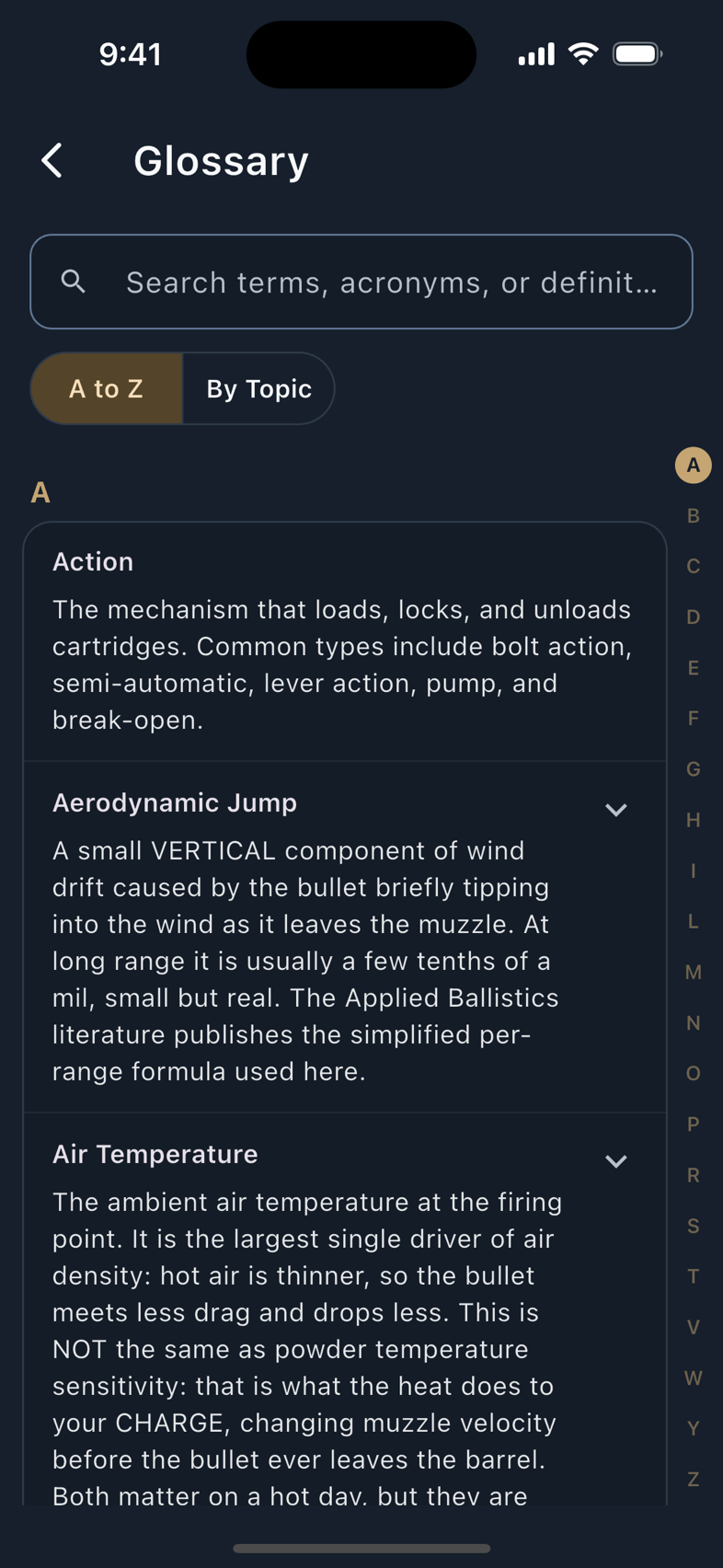
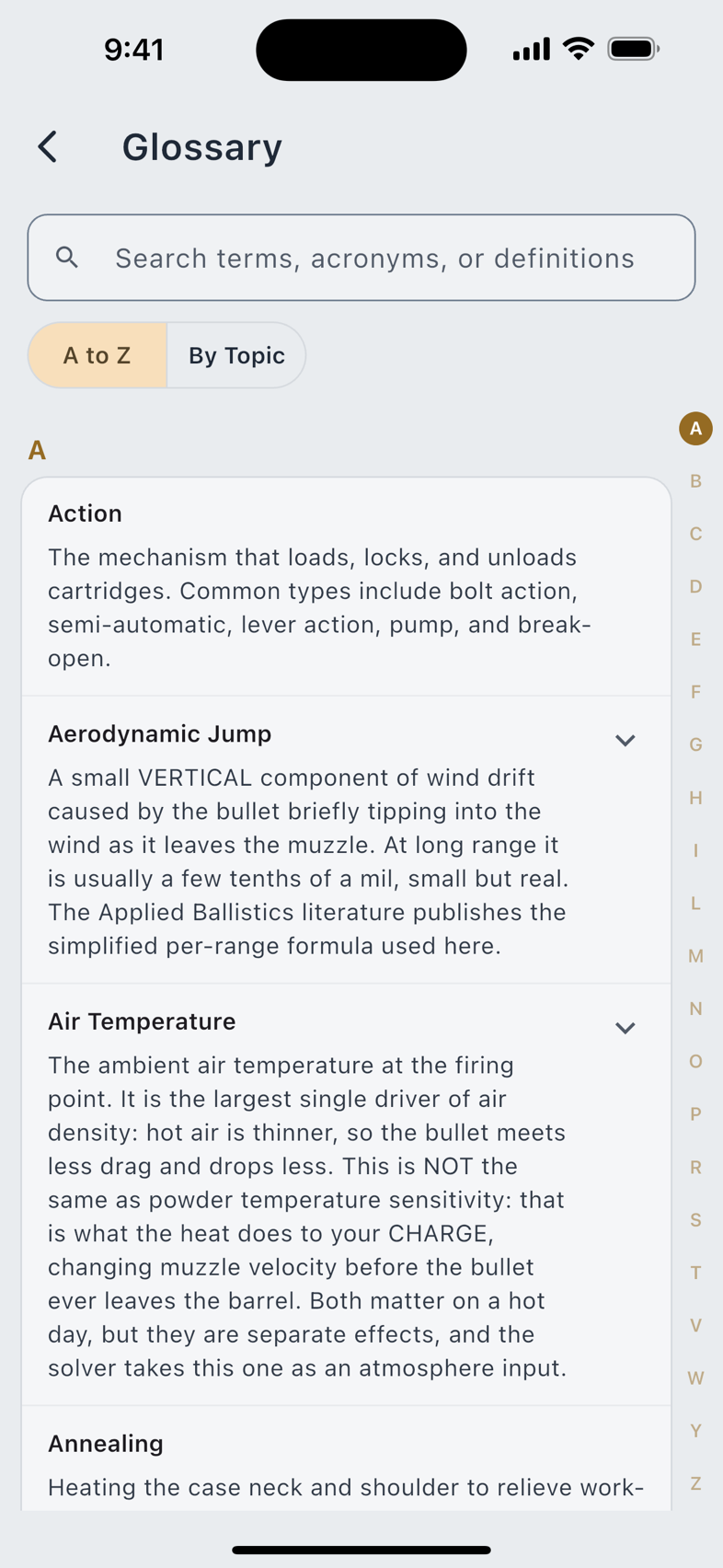
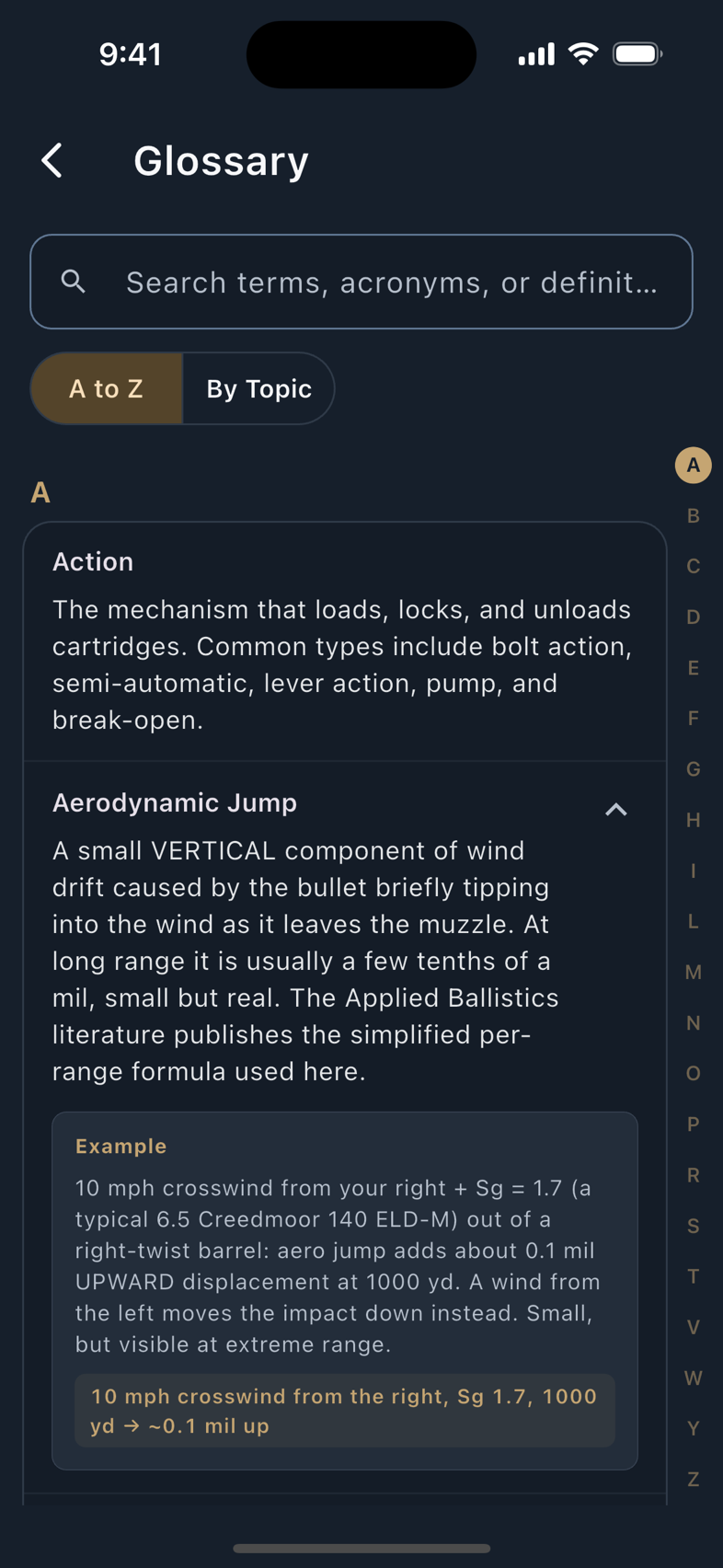
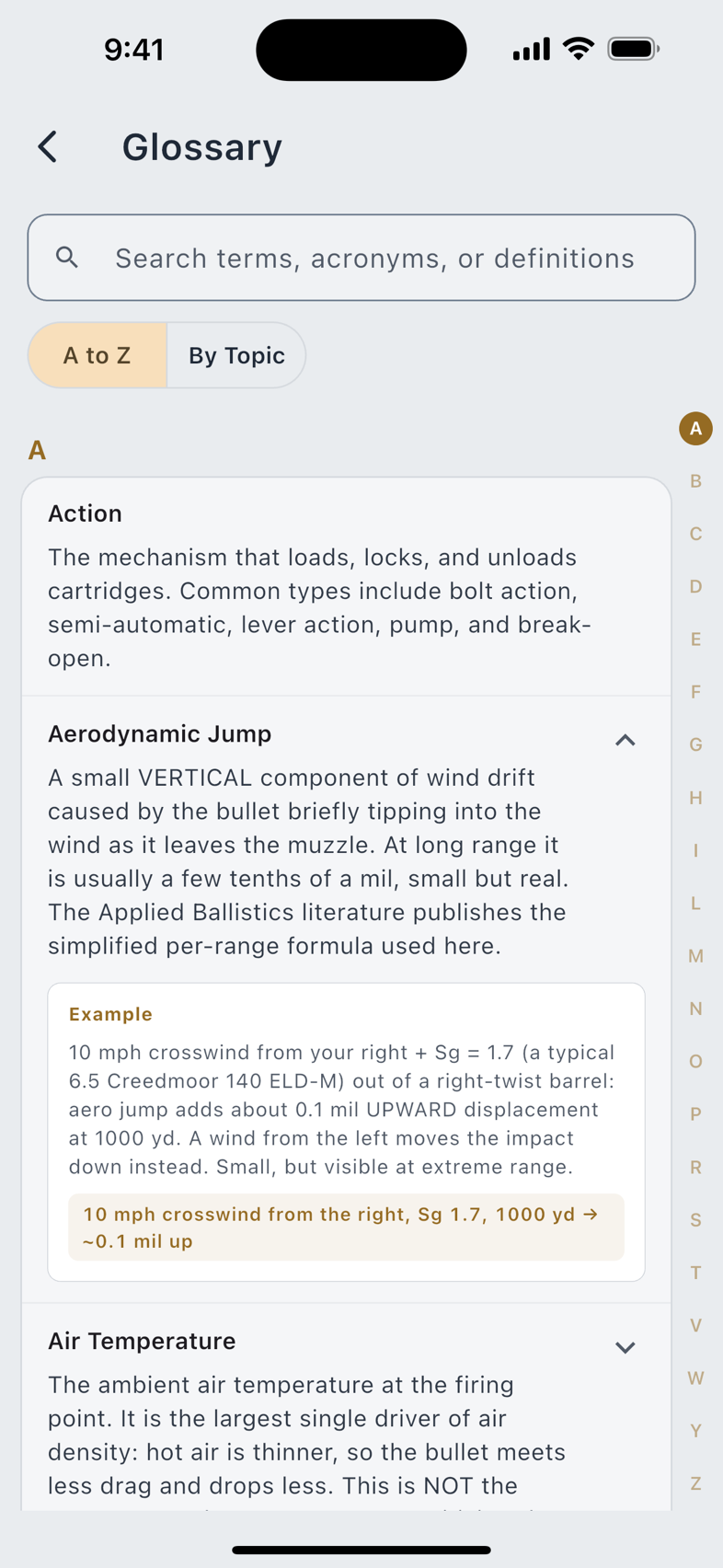
The whole list is published here too, generated from the app: the glossary reference.
Learn
The Learn row in the side menu opens a hub with two tracks. Learn Reloading & Shooting is the craft: the Glossary, illustrated Tutorials, and a full Reloading Guide covering every stage of building a cartridge. Using LoadOut is the app, in 33 How It Works topics across five sections: Track Your Gear, Ballistics & Tuning, At the Range, Import, Sync & Share, and Reference & Trust. Each states what the feature does, what it explains, and, for a dozen of them, the numbered steps, then hands you a button that opens the real screen. Alongside them are 34 walkthroughs: guided lessons that drive an actual LoadOut screen while you follow along.
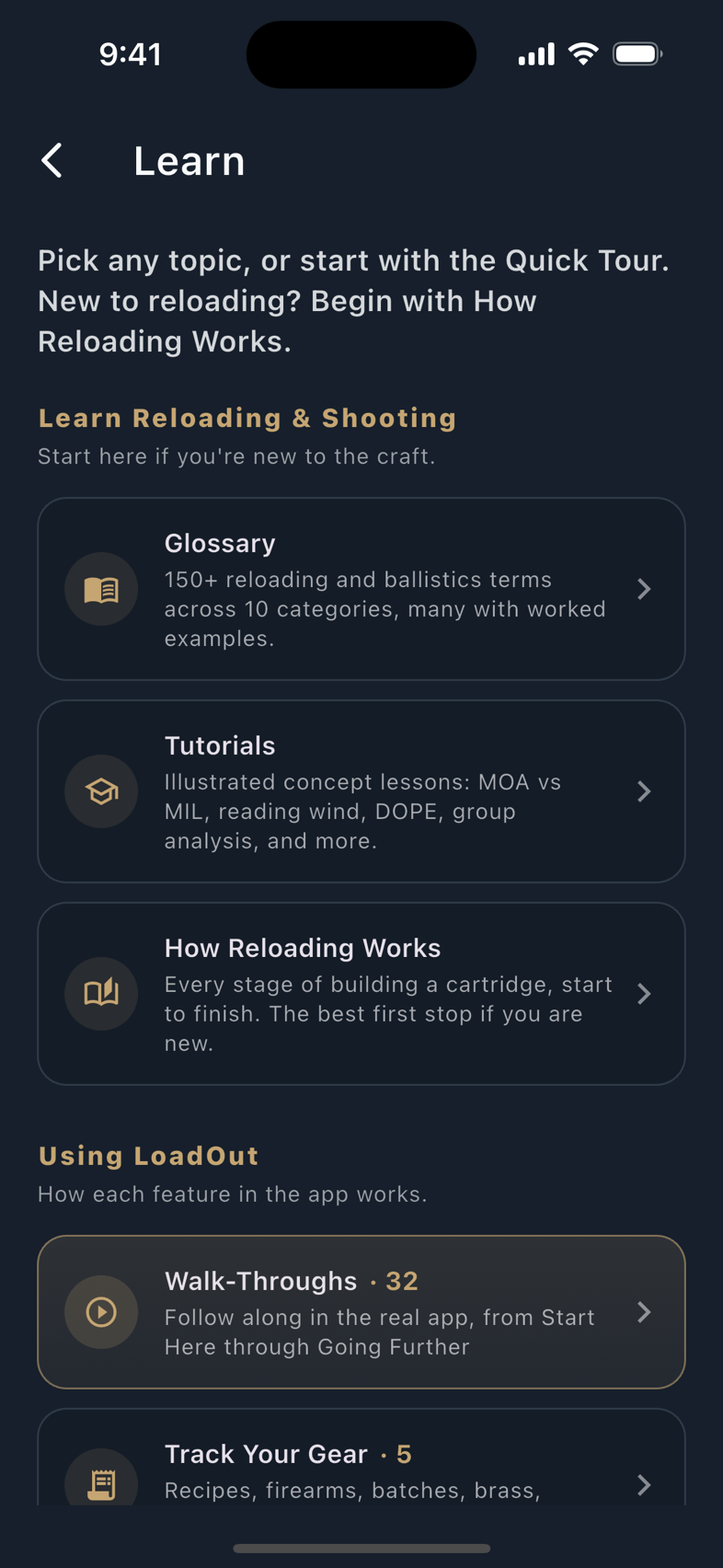
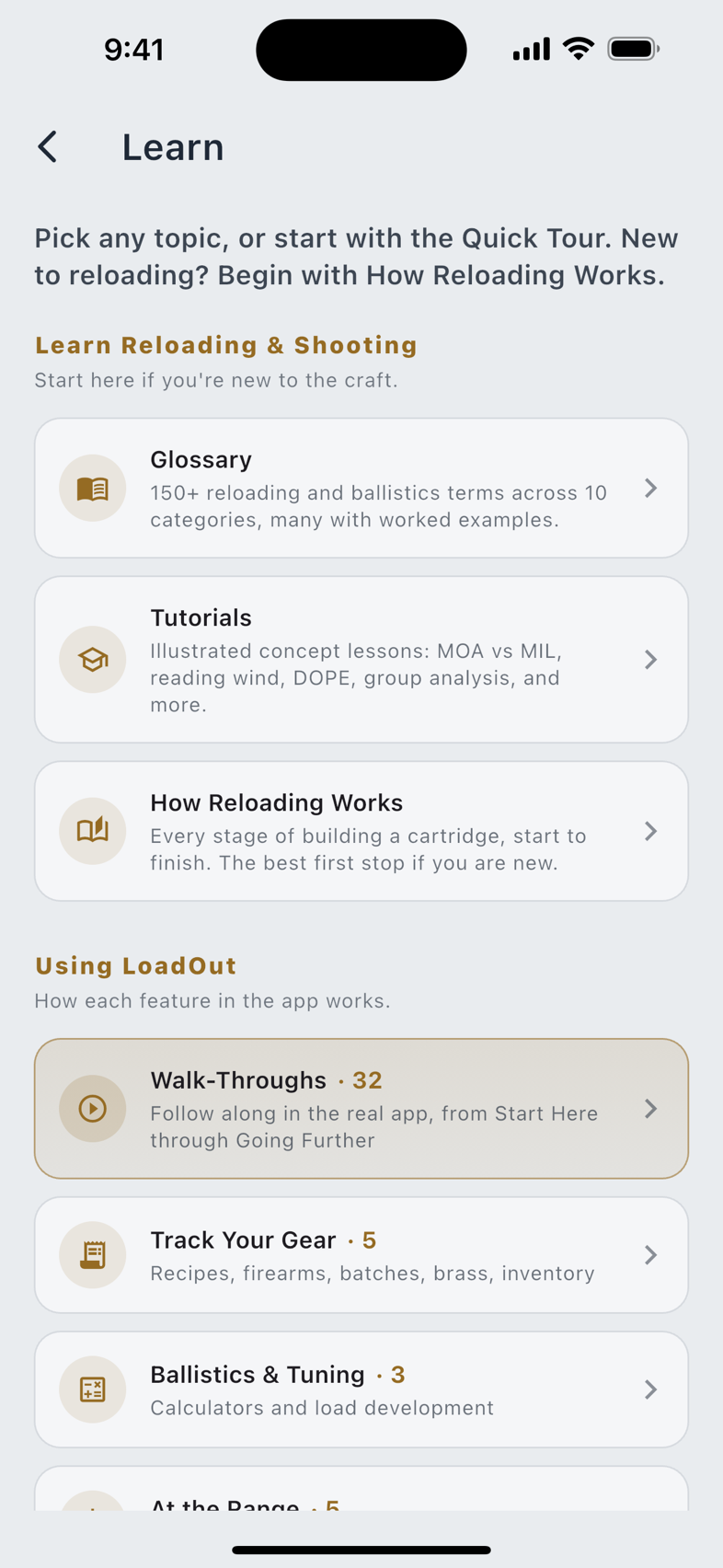
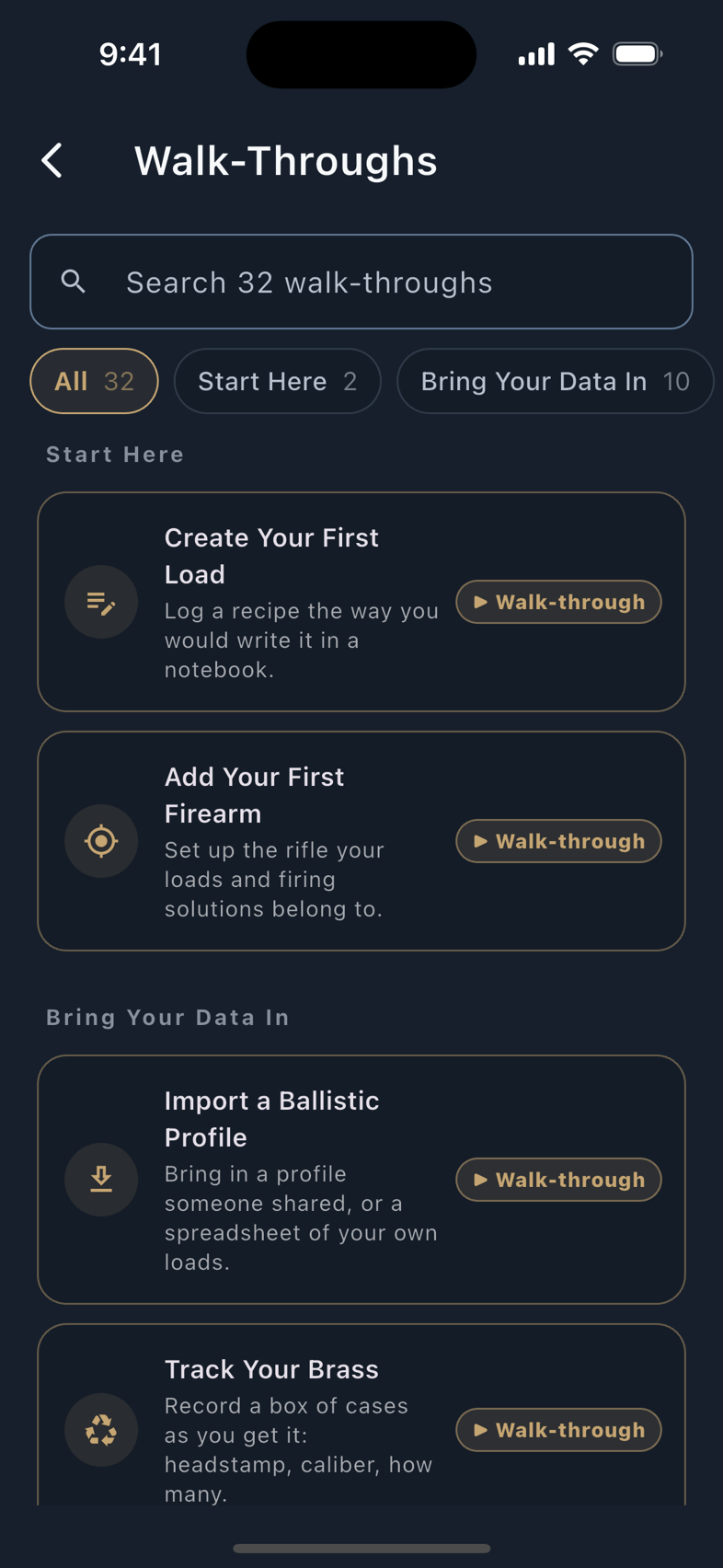
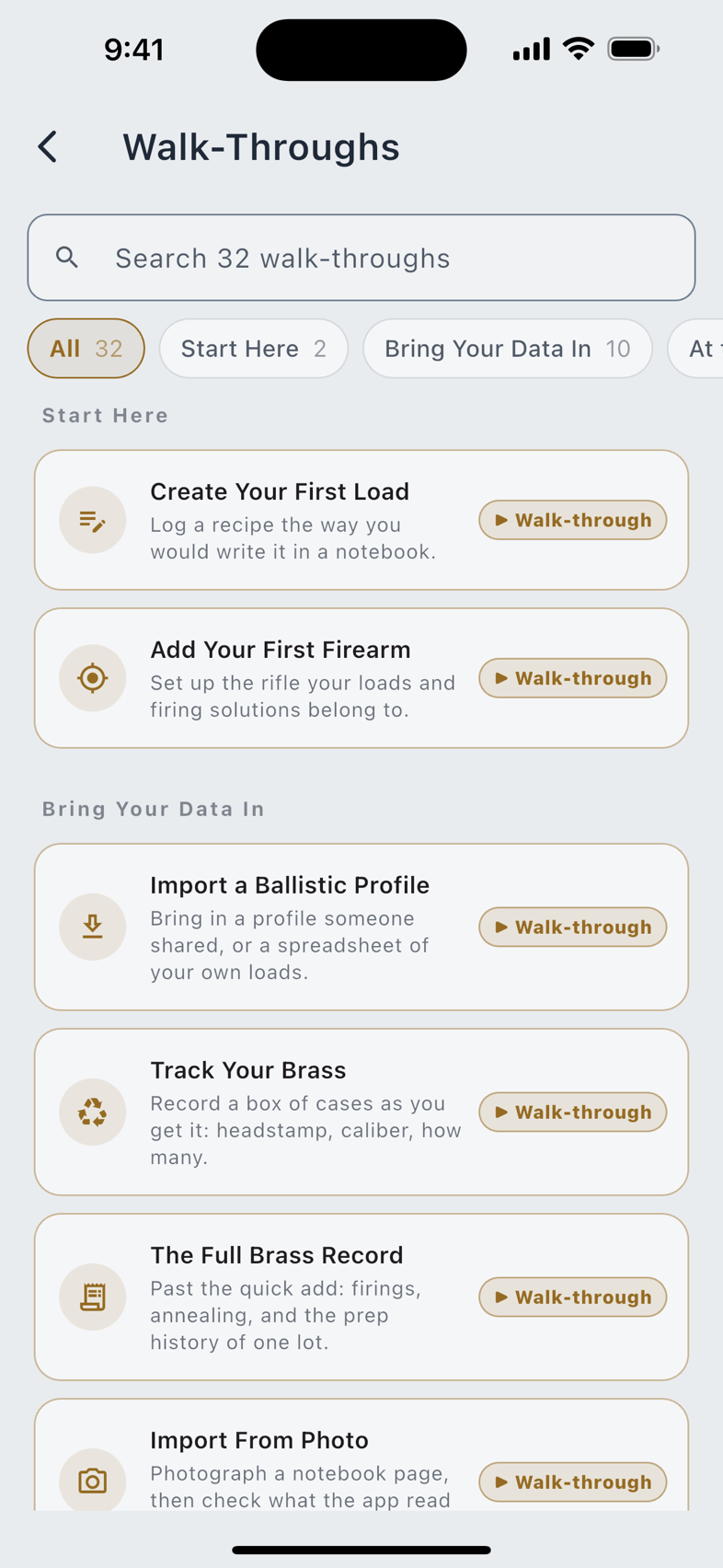
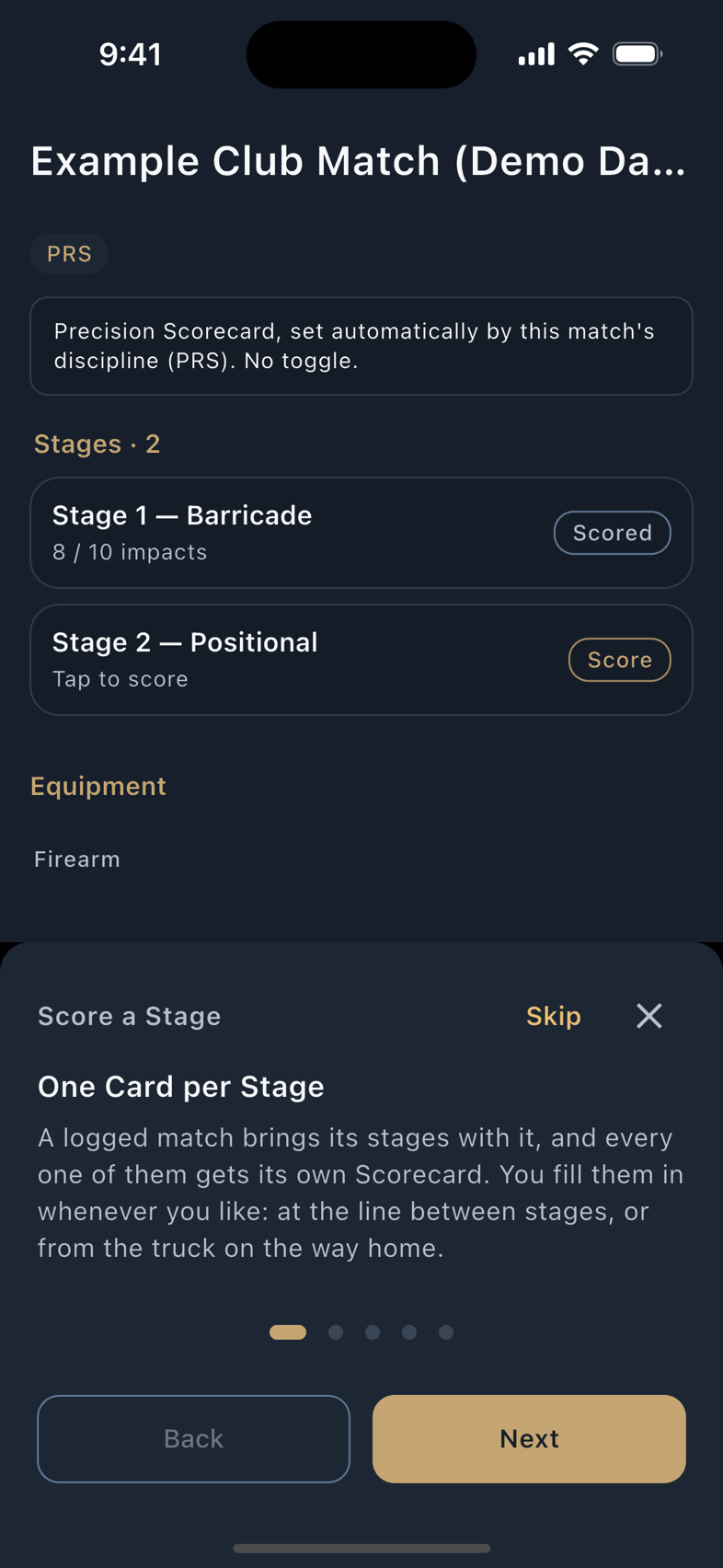
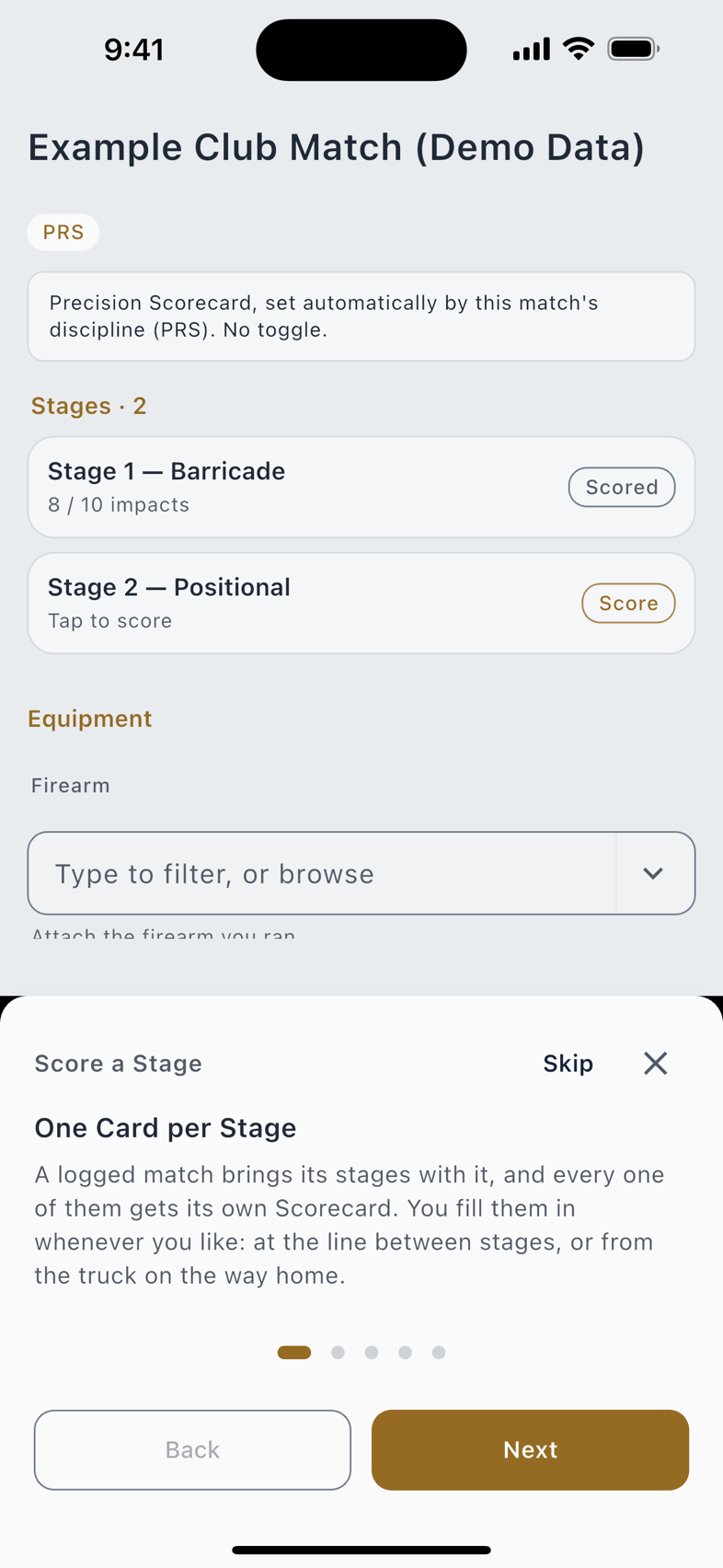
A walkthrough runs the genuine screen, not a mock-up of it, inside a throwaway database seeded with the reference catalogs, so the pickers are populated and nothing you type touches your own recipes, firearms or profiles. Fill in a form wrongly on purpose to see what the app does about it. Close the lesson and every trace of it is gone.
Notes
Free, uncapped, and never sent anywhere. A note is built from blocks rather than one field of text; the Add a Block panel offers five:
| Block | What it does |
|---|---|
| Text | Ordinary prose, with inline references anchored inside it. |
| Checklist | Tickable items: a prep sequence, a range bag list. |
| Table | Rows and columns, with aggregates. |
| Reference | Drops a live link to a recipe, firearm, batch or other record into the text. |
| Divider | A rule between sections. |
A table block carries Copy CSV and Paste CSV, so a column of chronograph numbers goes in from a spreadsheet and back out again without retyping. Notes file into folders, take tags you can filter by, pin to the top of the list, and read as a list or on a calendar. The search field asks your notes for a phrase, a load or a place.
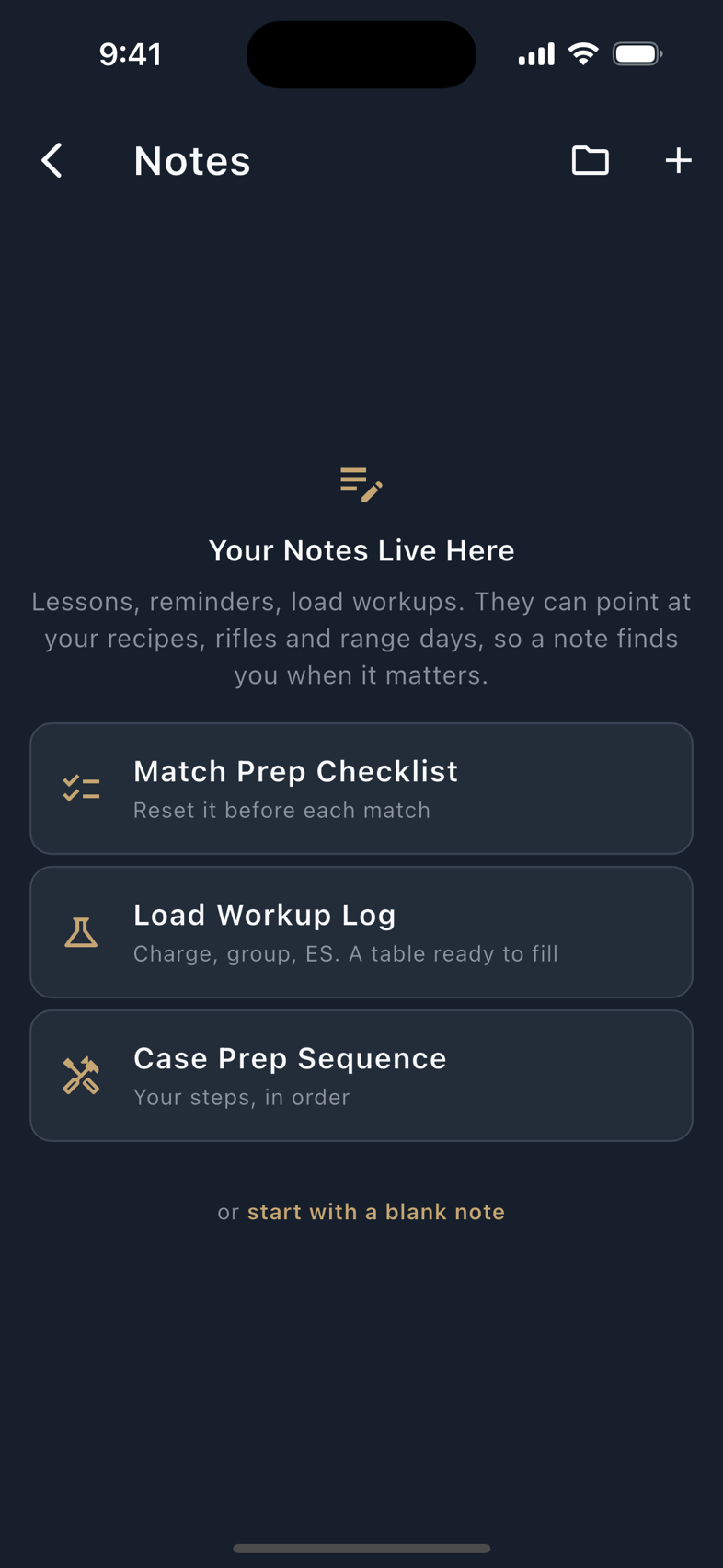
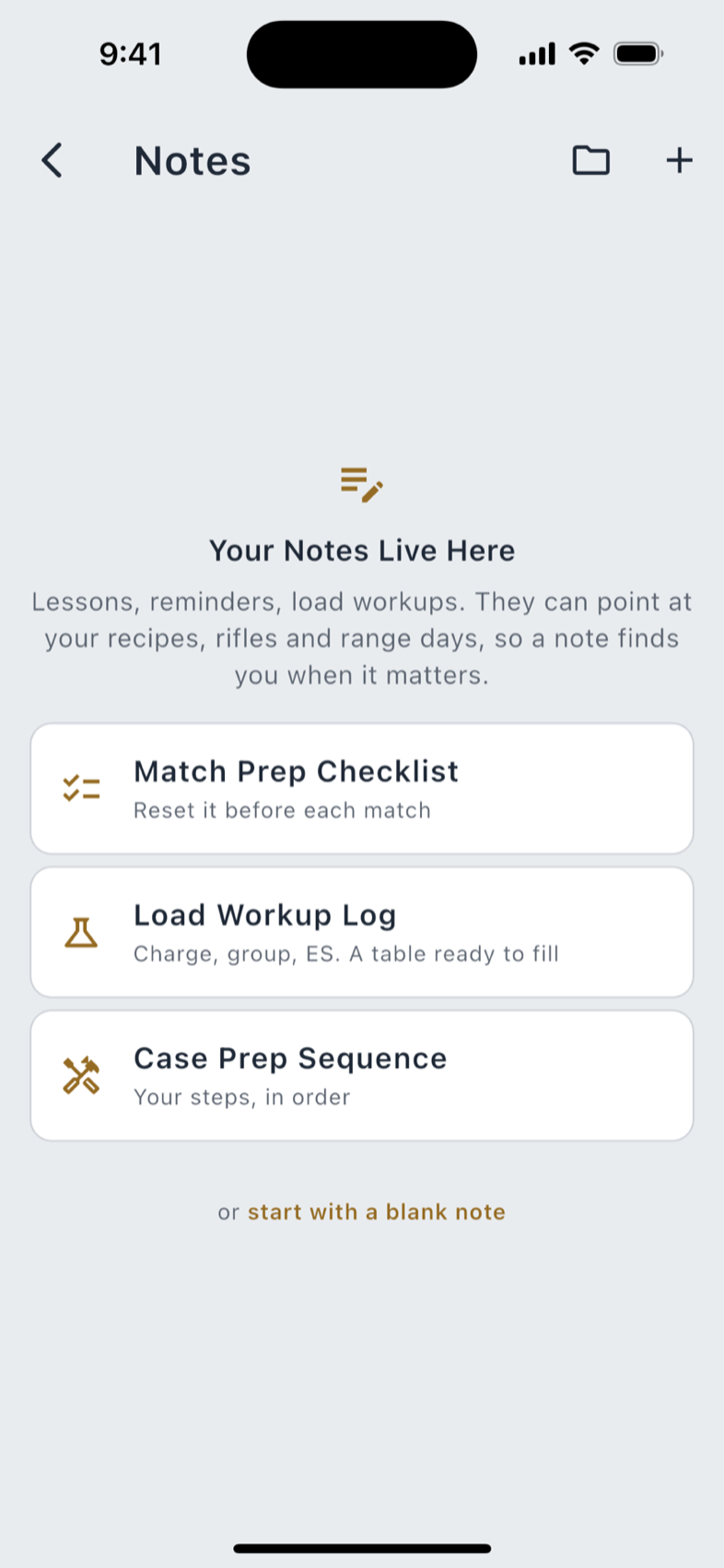
A referenced record knows about it: its backlinks show every note pointing at it. Delete that record and the note says it can be restored from Recently Deleted rather than silently losing the link.
Data Sources and attribution
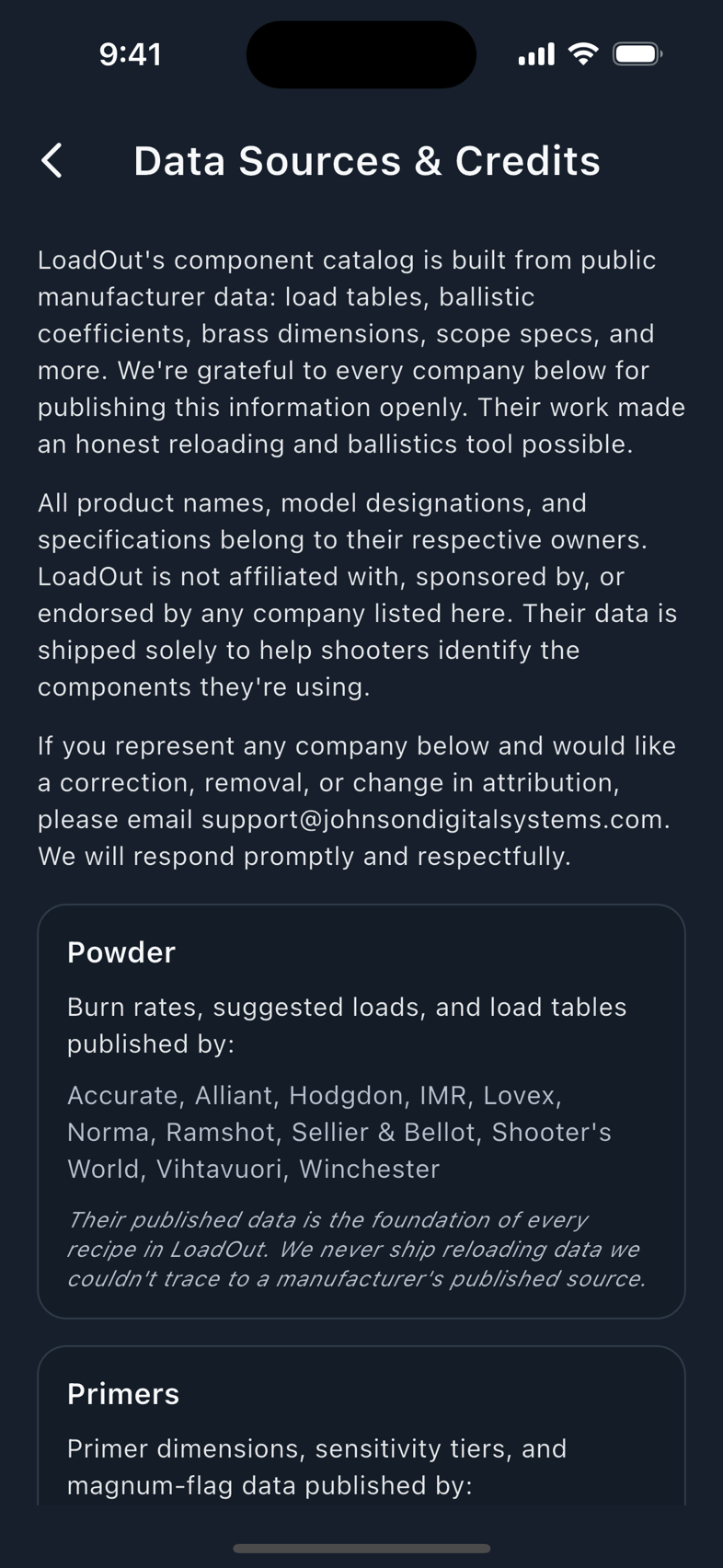
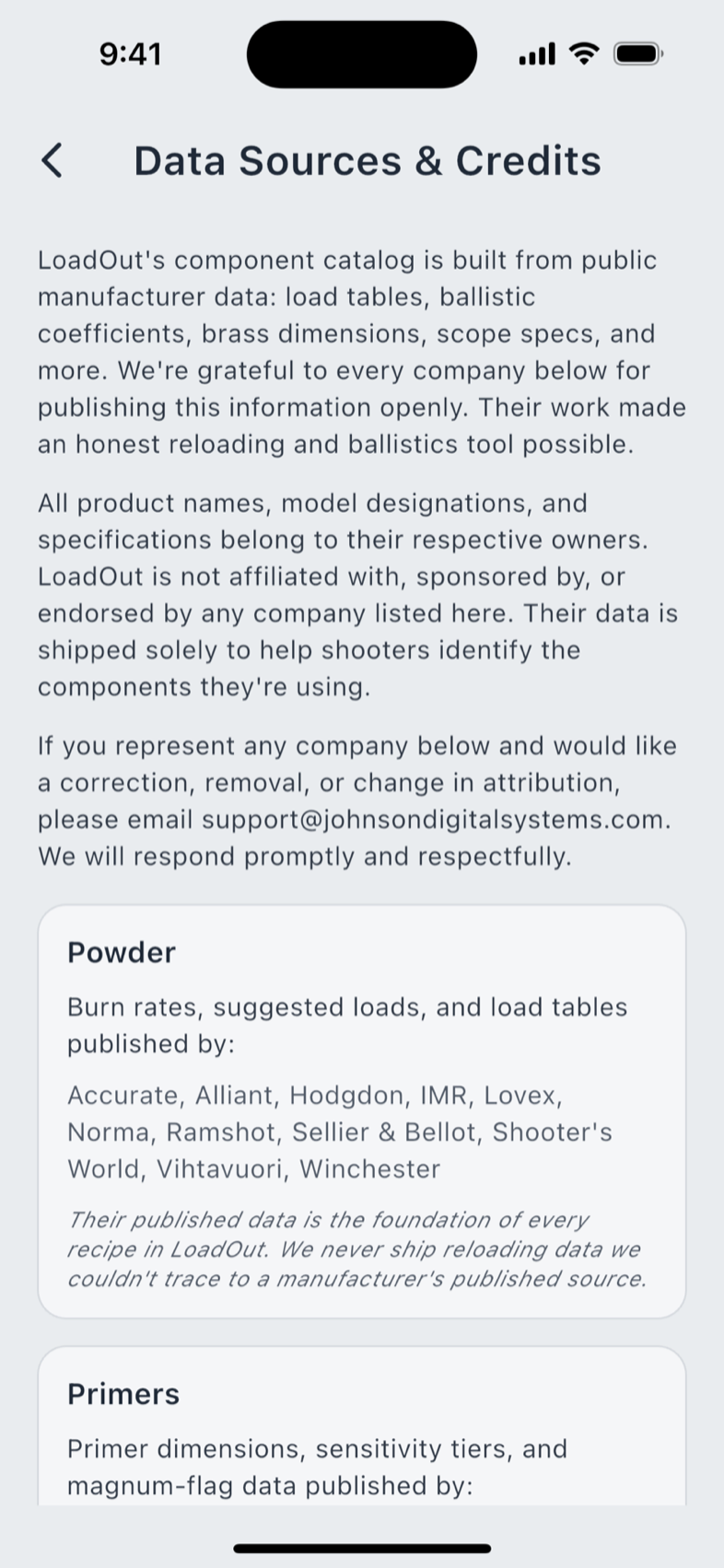
Settings › Data Sources & Credits names the source of every catalog in the app. It opens by setting the terms: the component catalog is built from public manufacturer data; all product names, model designations and specifications belong to their respective owners, and LoadOut is not affiliated with, sponsored by or endorsed by any company listed; and if you represent a company on the list and want a correction, removal or change in attribution, there is an address that will answer.
Below that sit nine category cards (Powder, Primers, Brass, Bullets, Cartridge Specifications, Firearms, Optics, Firearm Parts & Accessories, and Manufactured Ammunition), each naming what was published and by whom, under a shared footer: their published data is the foundation of every recipe in LoadOut, and LoadOut never ships reloading data it could not trace to a manufacturer's published source.
Further cards cover the reticle catalog and why LoadOut's reticles are its own designs or public-domain patterns; the public literature behind the ballistic math; the one device maker whose protocol documentation is published openly enough to build against; the open-source packages; and the speech and search models, each with the notice its licence requires.
Announcements
The Announcements row sits second in the side menu, with an unread count on its subtitle and a badge on the row. Mark All as Read clears the badge, and any announcement can be deleted once you are done with it. Some carry a video; some ask you to acknowledge them before they clear.
With nothing to show, the empty state says No Announcements and that you are caught up. When LoadOut cannot reach the feed it says that instead and tries again next launch, rather than presenting an empty list as though it were good news.