Chapters
On this page
LoadOut is laid out around one question: are you at the bench, or at the line? Four tabs answer it, a side menu holds everything that is neither, and a small set of conventions repeats on nearly every screen: a question mark beside a field, a detail-level toggle, a card that refuses to show a number. This chapter is the map.
The four tabs
The bar at the bottom of a phone carries four destinations, in this order. LoadOut opens on Ballistics.
| Tab | What lives there |
|---|---|
| Ballistics | The solver. Five views across one profile: Solution (one distance, answered above the inputs), DOPE (a full ladder), Target Card (a planned string of targets), Reticle, and Analytics. Above the views sit Undo, Redo, Library and Find a Field.... |
| Bench | Everything you build and consume: Recipes, Batches, Brass Log, Component Inventory, and Load Development. Each row carries a live count and an empty line when there is nothing yet. |
| Firearms | Your rifles, pistols and shotguns, factory and custom builds alike, with their optics, twist, round counts and barrel life. |
| Range Day | The session you are shooting right now. Five views: Loadout, Downrange, Stage Plan, Analytics, Advanced. |
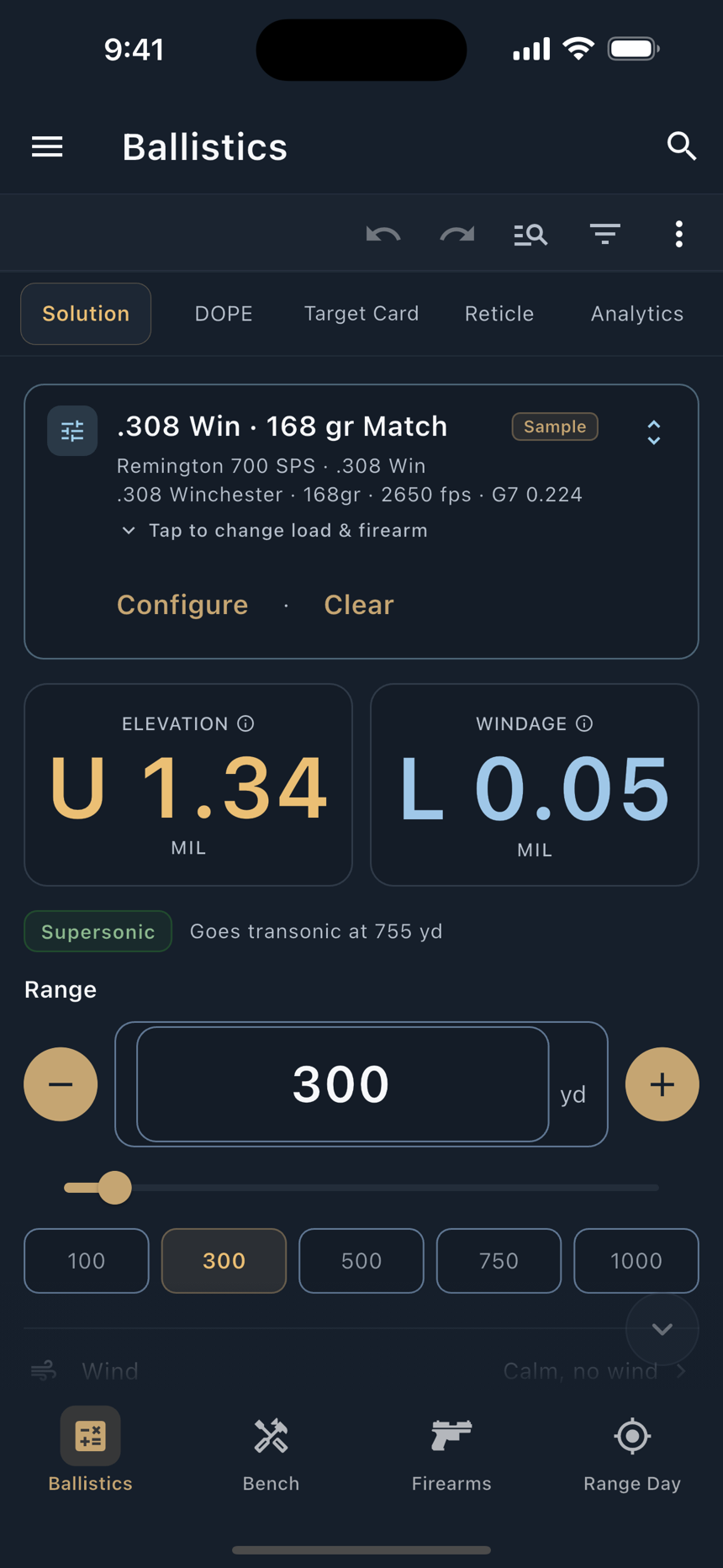
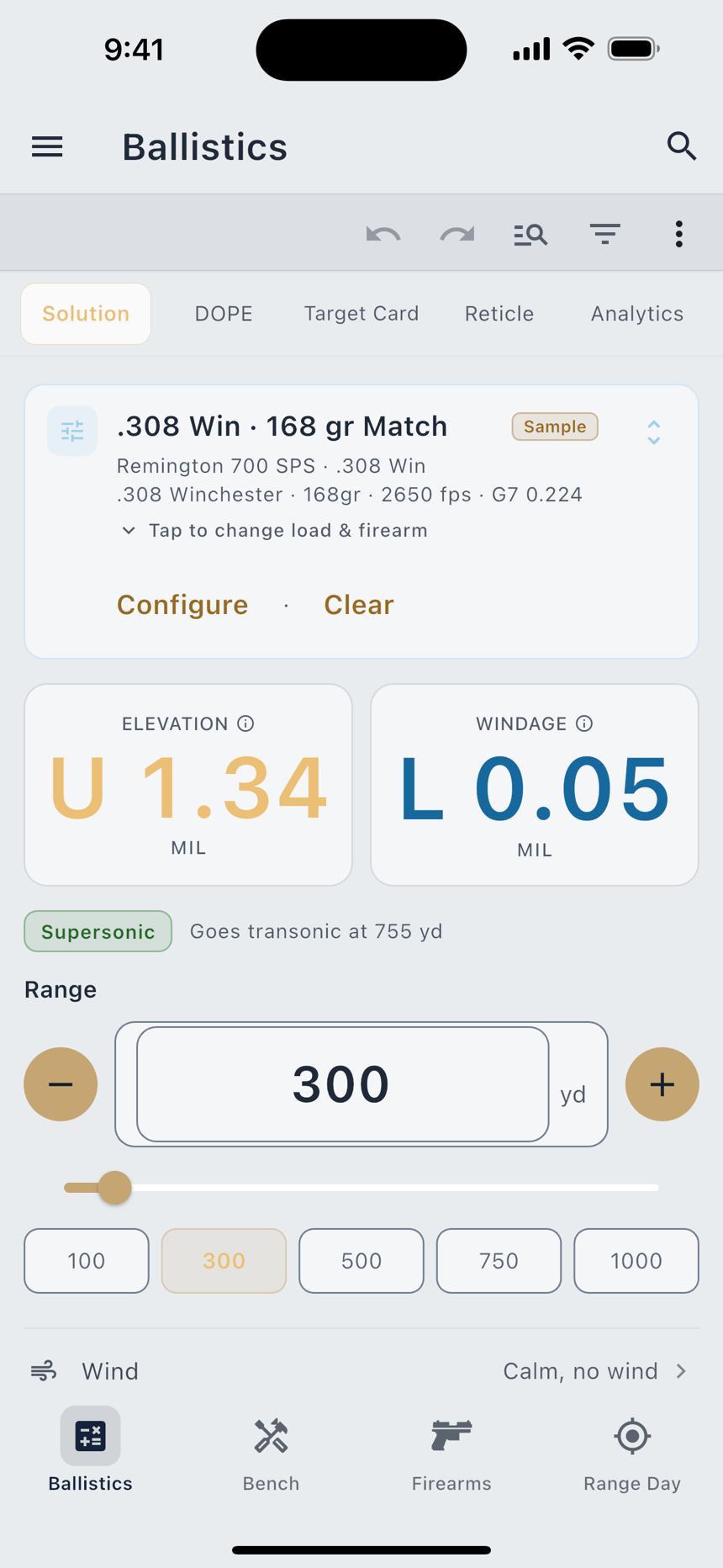
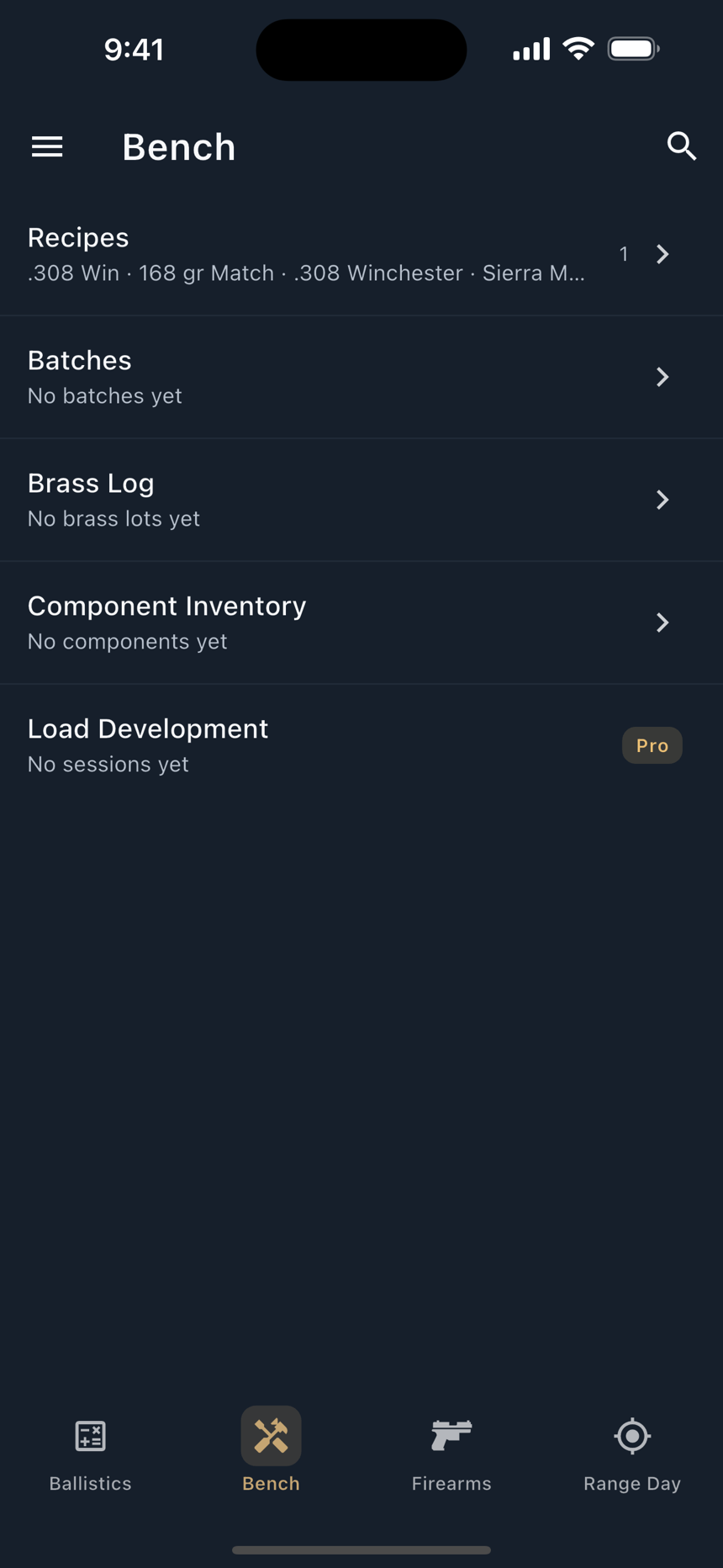
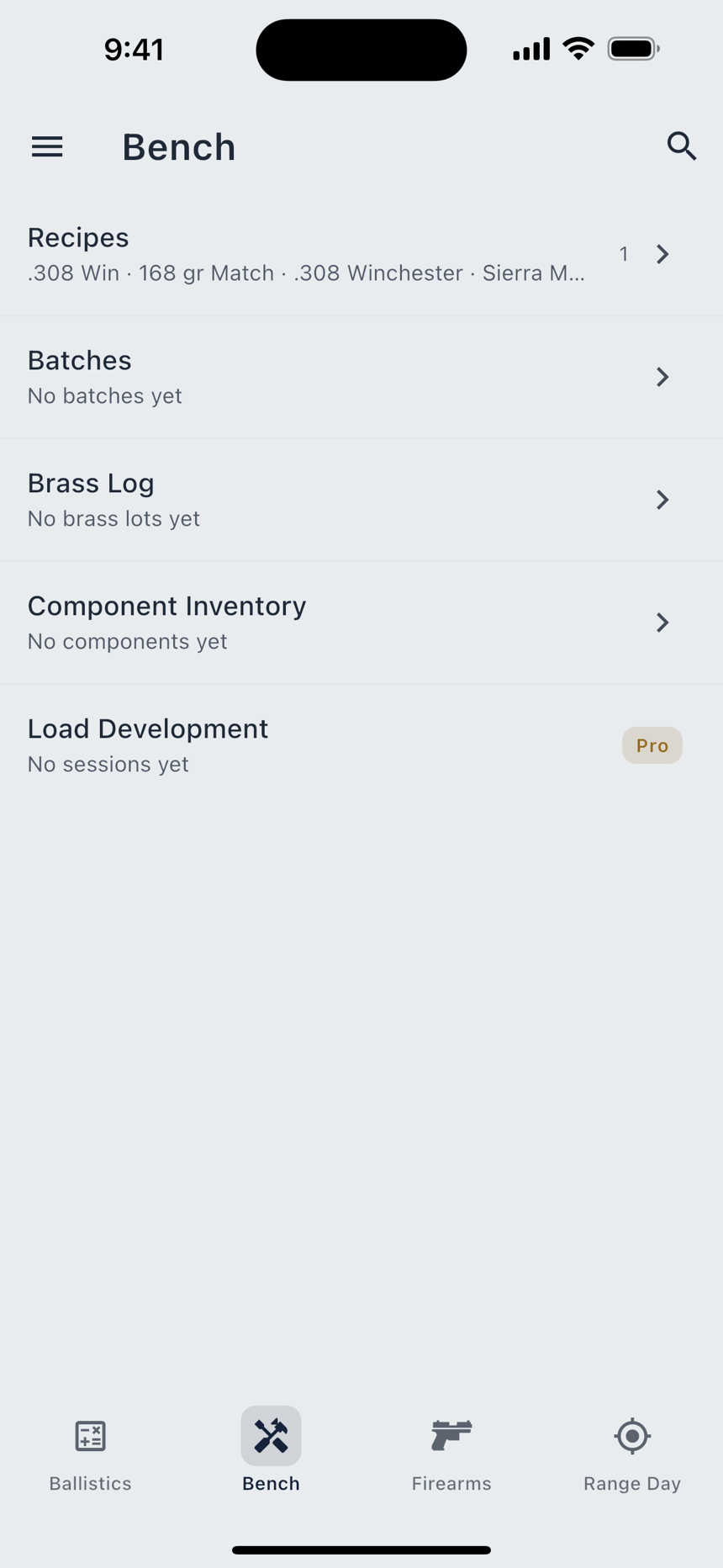
That split follows the work. Bench and Firearms are the things you own. Ballistics turns two of them into a number. Range Day is where that number meets a target and comes back as data. The Ballistics, Recipes, Firearms and Range Day chapters take one each.
The solver itself is free, and so is most of what surrounds it: the Solution view, the DOPE ladder, Target Cards, the Reticle view, truing, and the Stylized scope view. Free is not the whole of the four tabs, though. Load Development carries a Pro chip and gates when you tap it; the Ballistics tab's Full Analytics page is Pro, though the Analytics tab itself is free; and so are the live weather pull, the hit-probability map, mover lead, GPS altitude, the Scenic scope tier, full group statistics and attaching photos. Recipes and batches are uncapped, but a free account holds two firearms and two ballistic profiles. See Free vs Pro for the complete list.
The side menu
Swipe from the left edge, or tap the menu icon. The drawer is on every layout, including the wide ones, and holds what is not a tab.
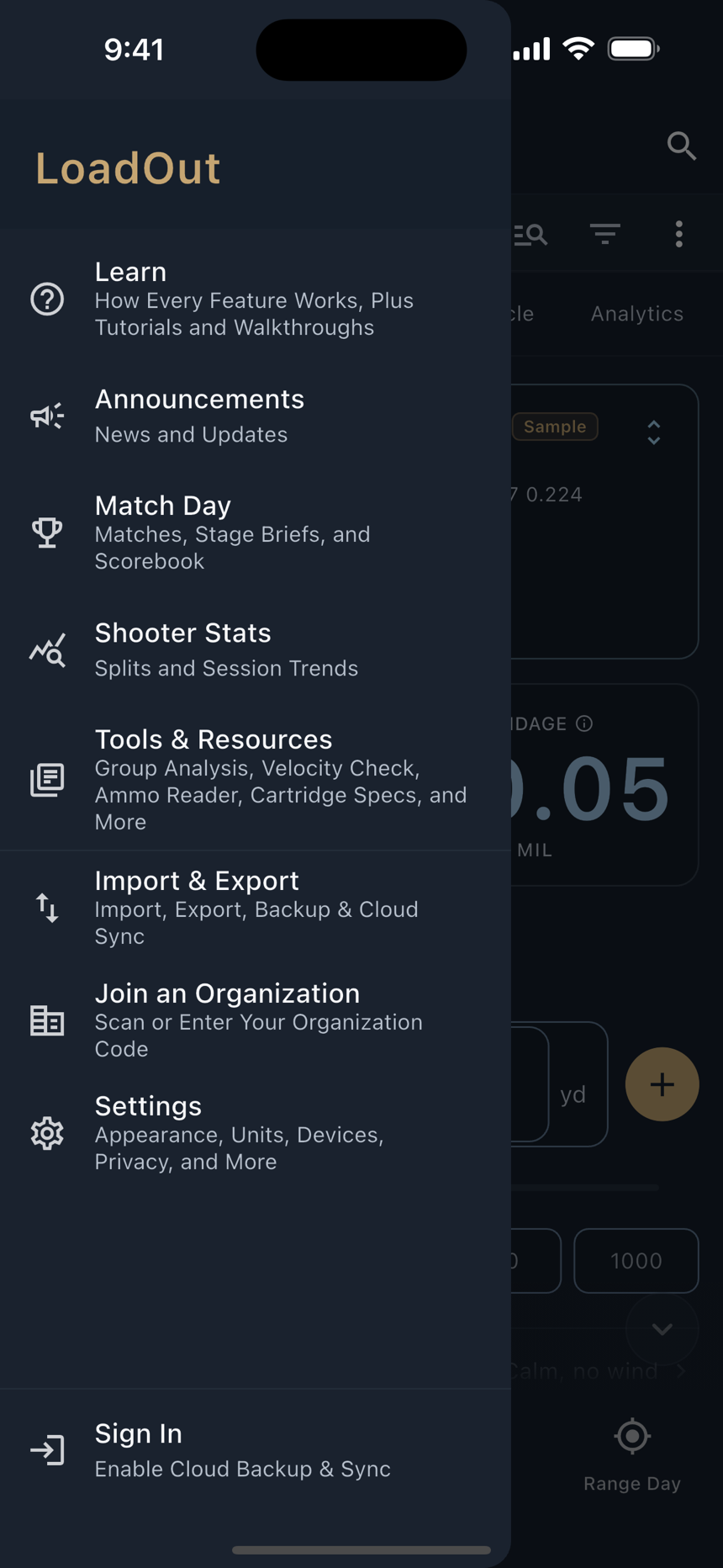
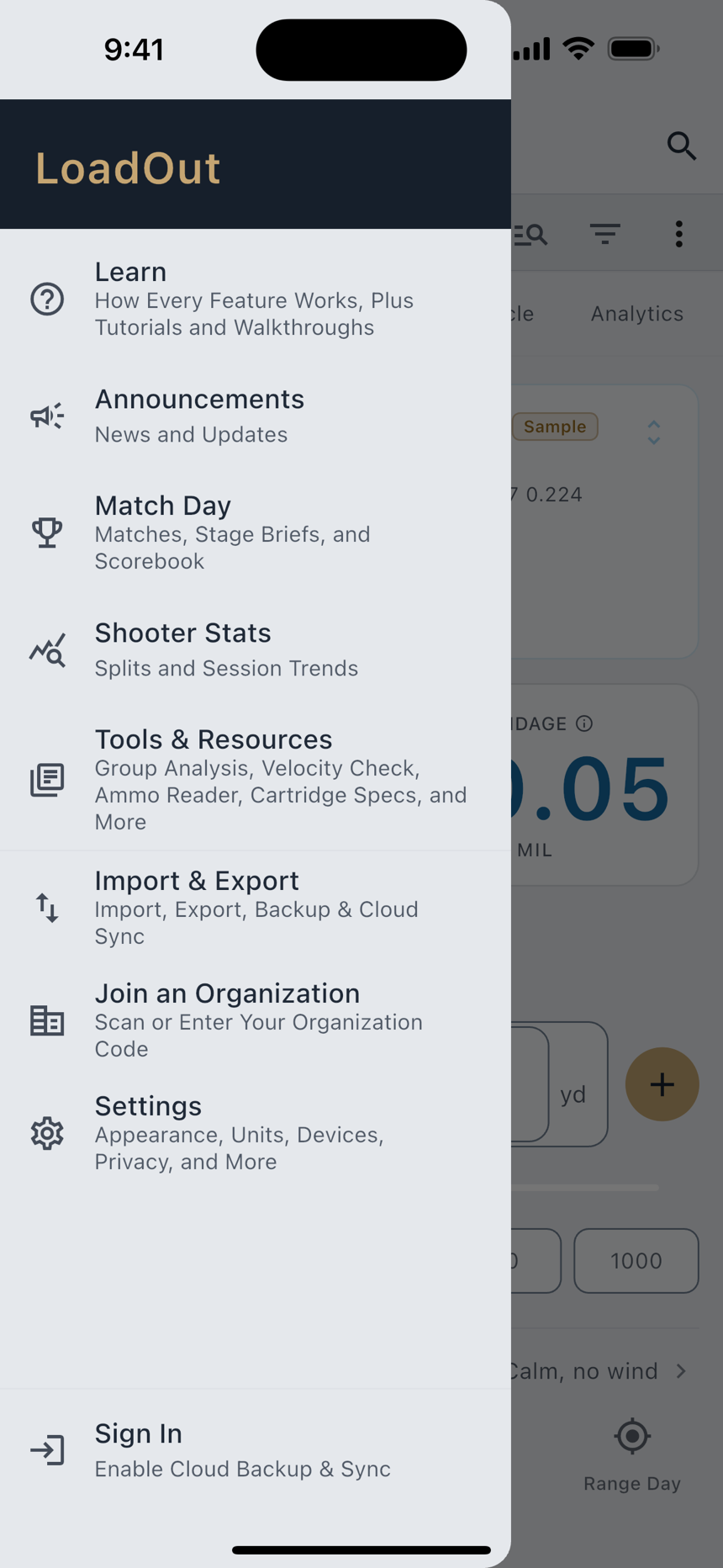
An organization can hide some of these rows in a branded build; Settings and the sign-in row are never hidden. If you are not part of one, a Join an Organization row sits above Settings.
On iPad, Mac, and the web
The layout changes at two widths, and only the presentation changes. The destinations, their order and their contents are identical.
- Under 600 points: the bottom bar. Every phone, in both orientations.
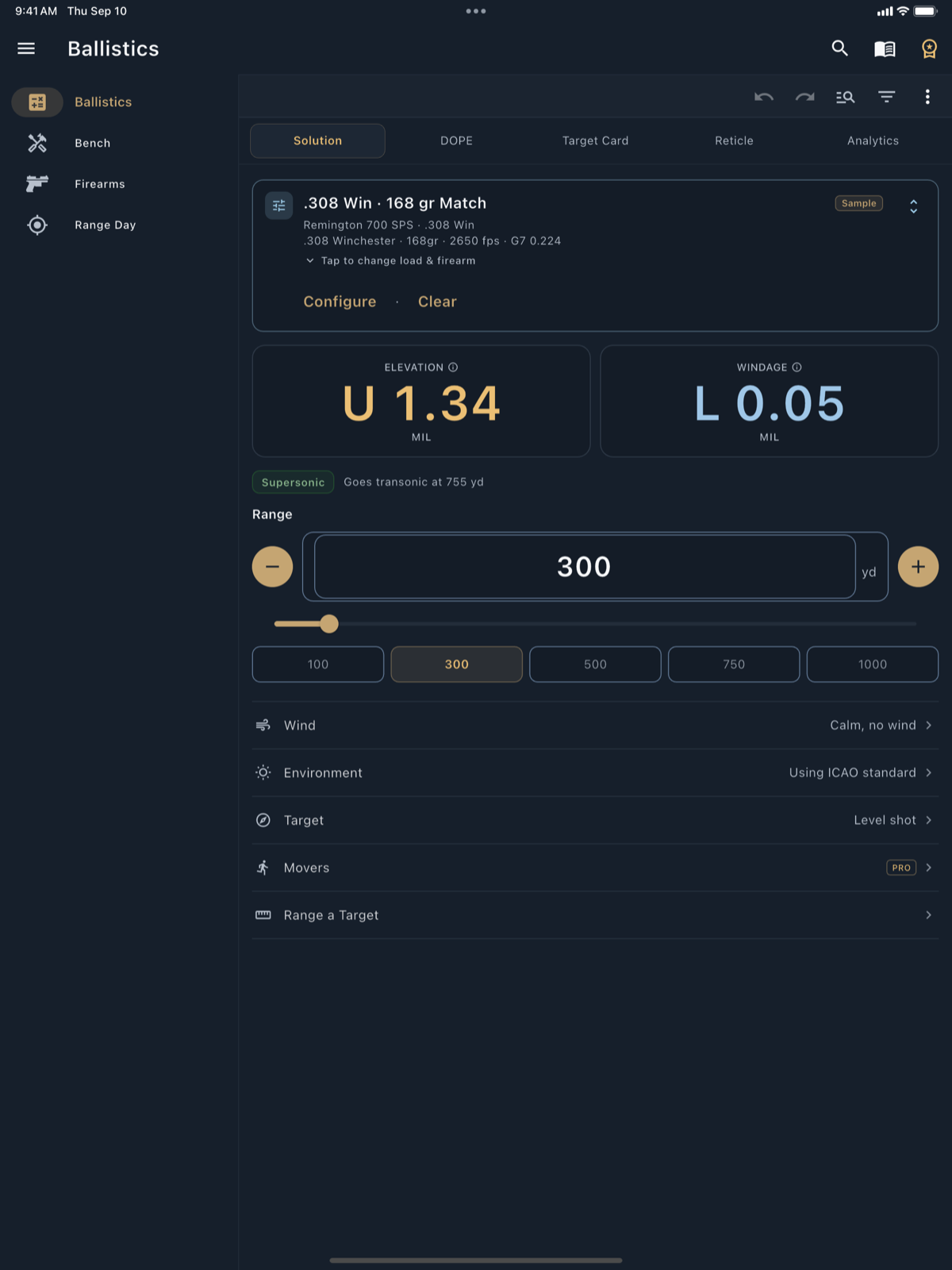
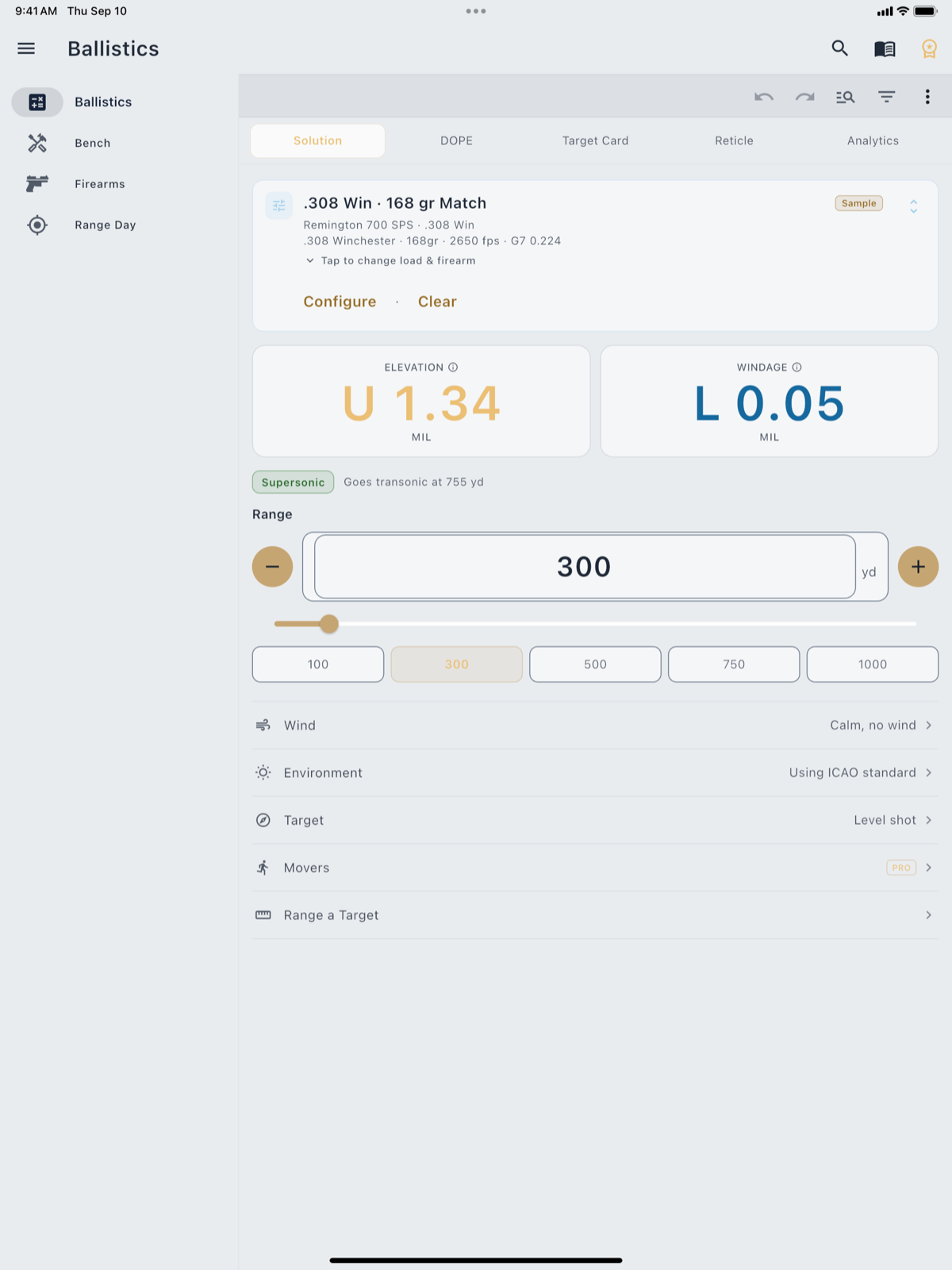
- 600 to 1,023: the bottom bar is replaced by a navigation rail down the left side, icons above short labels. Every iPad orientation lands here or wider.
- 1,024 and up: the rail extends, showing icons and labels inline. A typical Mac window and an iPad Pro in landscape both sit here.
At those widths the list screens become master-detail: the list stays on the left, and tapping a row opens it in a pane on the right rather than pushing a new screen. Forms stop stretching edge to edge and settle into a centred single column, so a recipe reads the same on a 27-inch display as it does on a phone.
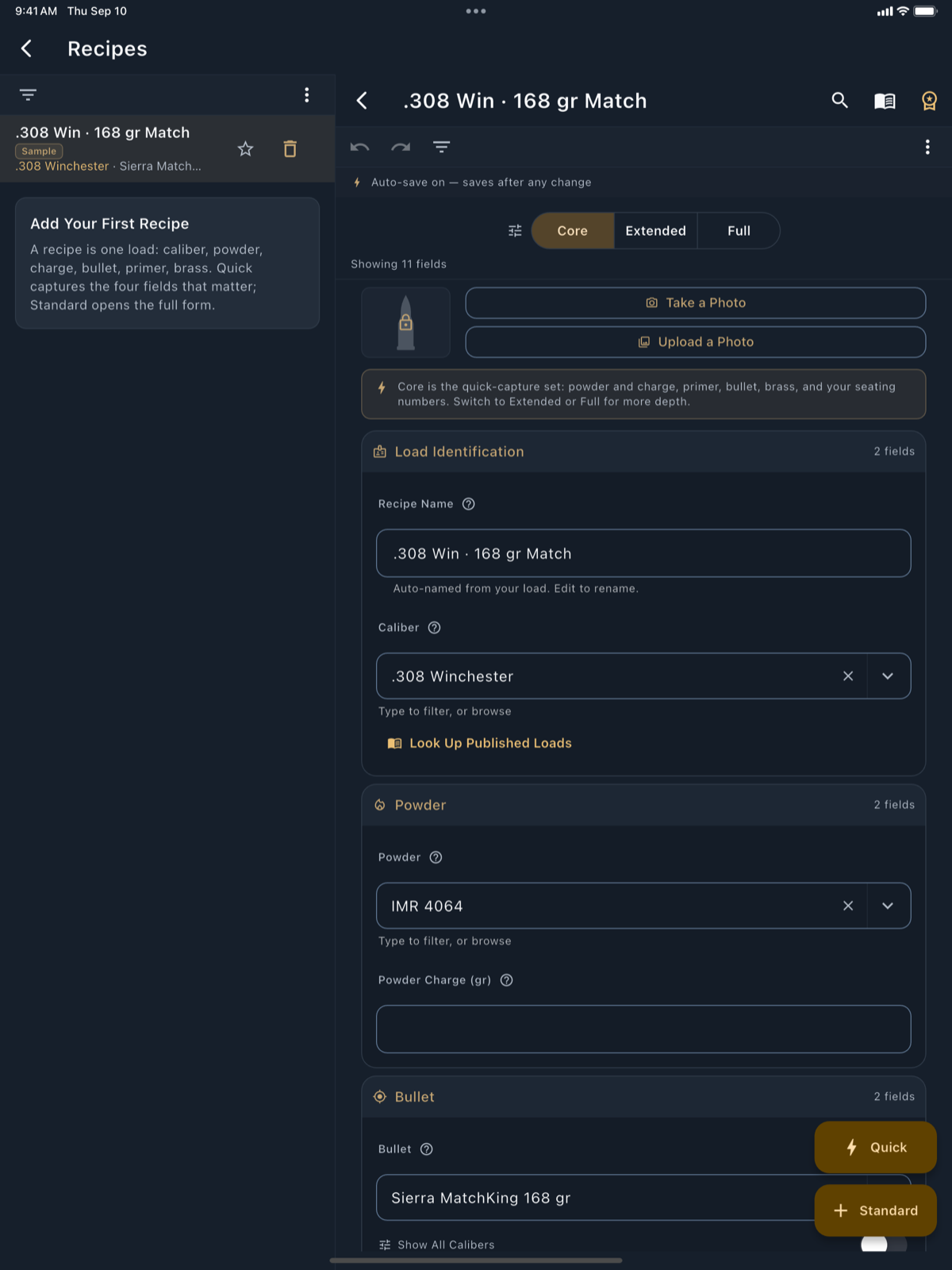
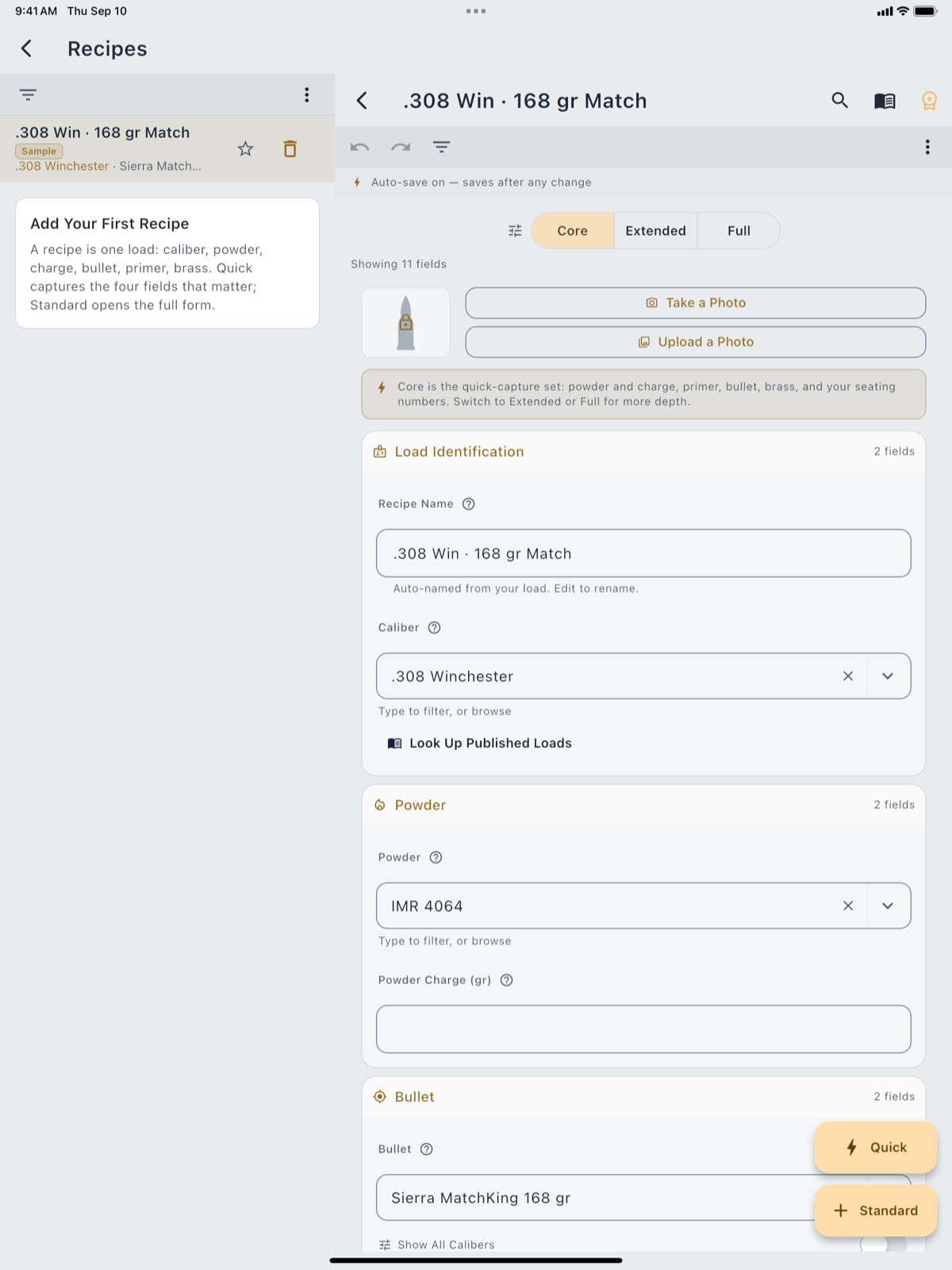
Camera, the motion sensors and watch pairing are phone and tablet features; Bluetooth meters and the shot timer also pair on the Mac. The Mac app runs the whole workspace and the whole solver without them: recipes, firearms, batches, brass, the solver, target cards, Range Day, the catalogs, import and export. What it cannot do is photograph a notebook page, read cant off the device, or talk to a watch. The web app runs the workspace but not LoadOut's full solver: firing solutions are computed in the phone, tablet, and Mac apps, and the web app says so plainly on the screens it affects rather than showing a lesser number.
Conventions you will see everywhere
The question mark beside a field
Tap the ? next to a field's label and a sheet opens with that term's definition, a worked Example where one exists, and an Open in Glossary button. It is the same text the Glossary carries, delivered where you hit the question. Screen readers announce the glyph as Show definition. With Beginner Mode on, the notes are more prominent; the sheet itself is always there.
Quick and Standard forms
Three record types open two ways: Recipes, Batches and Brass Log. Quick gives you the handful of fields you would write in a notebook and a Done button. Standard opens the full form. A Quick record is a real record. Open it later in Standard and add the rest whenever you like. Nothing is a draft.
Core, Extended, and Full
The long forms carry a three-way toggle: Core, Extended, Full. It changes how many fields are drawn. It does not change anything else. The fields you do not see are hidden, not deleted: a value you entered at Full is still there when you drop back to Core, and it still exports, still syncs, still solves.
The Sample badge
A record marked Sample is one the app seeded so a screen would not open empty. The badge means an example you can edit to adopt, or delete, and it clears the first time you save an edit. See The Sample.
How Pro shows up
Pro is marked two ways and never a third. Most gated features carry a Pro pill and open the paywall when tapped. A few visual surfaces instead show you the real thing, live and blurred, under an unlock prompt. The controls stay live and the preview reacts as you move them, so you can feel the feature before deciding. The Stylized scope view is not one of them: the clean geometric scope picture, all 55 reticles and target selection are free, and only the photo-backdrop Scenic tier is gated.
Blank inputs, and what the app does with them
LoadOut never invents an input. That shows up in three places you will meet constantly.
- Leave the weather empty and the solver uses the ICAO standard atmosphere (59°F, 29.92 inHg, sea level), then says so on the face of the solution: Using ICAO standard atmosphere. You are always told where the air came from, and you are never shown fabricated conditions.
- Leave a bullet or rifle input empty and the computed card refuses to render a number at all. Instead an amber card names what is missing (Can't compute a firing solution yet, Can't true yet, Can't plot the hit-probability curve yet) and lists the fields by name, in your own units.
- A value that could not be solved reads as a dash, never as a zero. A zero is a number; a dash is an honest absence.
An amber card is not an error. It is the app telling you which two fields stand between you and an answer, usually a muzzle velocity and a ballistic coefficient. Fill them and the card is replaced by the solution.
Recently Deleted
Deleting a recipe, firearm or other record moves it to Recently Deleted for 30 days, reachable from Settings › Privacy & Data. Restore it there, or remove it for good. Deleted rows still ride your encrypted cloud copies during those 30 days, so a delete converges across your devices rather than being resurrected by a stale one.
Search
The magnifier in the app bar opens one search across everything you have (recipes, firearms, batches, brass, notes, target cards) plus the glossary, the settings directory and every screen. The hint reads Search anything, and it is exactly that: typing a setting's name jumps you to that switch, typing a term gives you its definition with a View in Glossary link, and typing a name that matches nothing offers to create a recipe with it.
Keyword search is free and always on. Search by Meaning sits on top of it as a Pro layer: it finds a load by what you meant rather than the exact words you typed, and it runs on your phone. The model downloads once and the search itself is computed on-device. Ordinary search does not change when you turn it on.
Search by Meaning is Pro and asks before it downloads its model. Declining leaves keyword search exactly as it was.
Announcements
Announcements in the side menu is where release notes and notices land, with an unread count on the row. When there is nothing new the screen reads No Announcements, with You're all caught up. New announcements show here when we publish one. underneath. If the app cannot reach the list it says so rather than showing an empty one, and tries again next launch.
Nothing about it pushes at you: there are no notifications to enable, and reading an announcement is a thing you go and do. The one related switch is in the AI hub, where a single toggle offers to show you a note the next time you open LoadOut after one of the Coming Soon features ships.