Chapters
On this page
A recipe says what to load. These three records track what you actually loaded, what you loaded it into, and what you have left. All three live on the Bench, all three are free, and none of them ever fills in a number you did not enter.
Batches
A batch is one production run: a recipe, a lot of brass, a firearm, a round count, and the process you stepped through to build it. The empty state says it plainly: a batch is one production run. Pick a recipe, pick a brass log, set how many rounds you're loading, and step through the process.
The batch list carries a two-button FAB. Quick opens Quick Add Batch; the plain add button opens the full batch form.
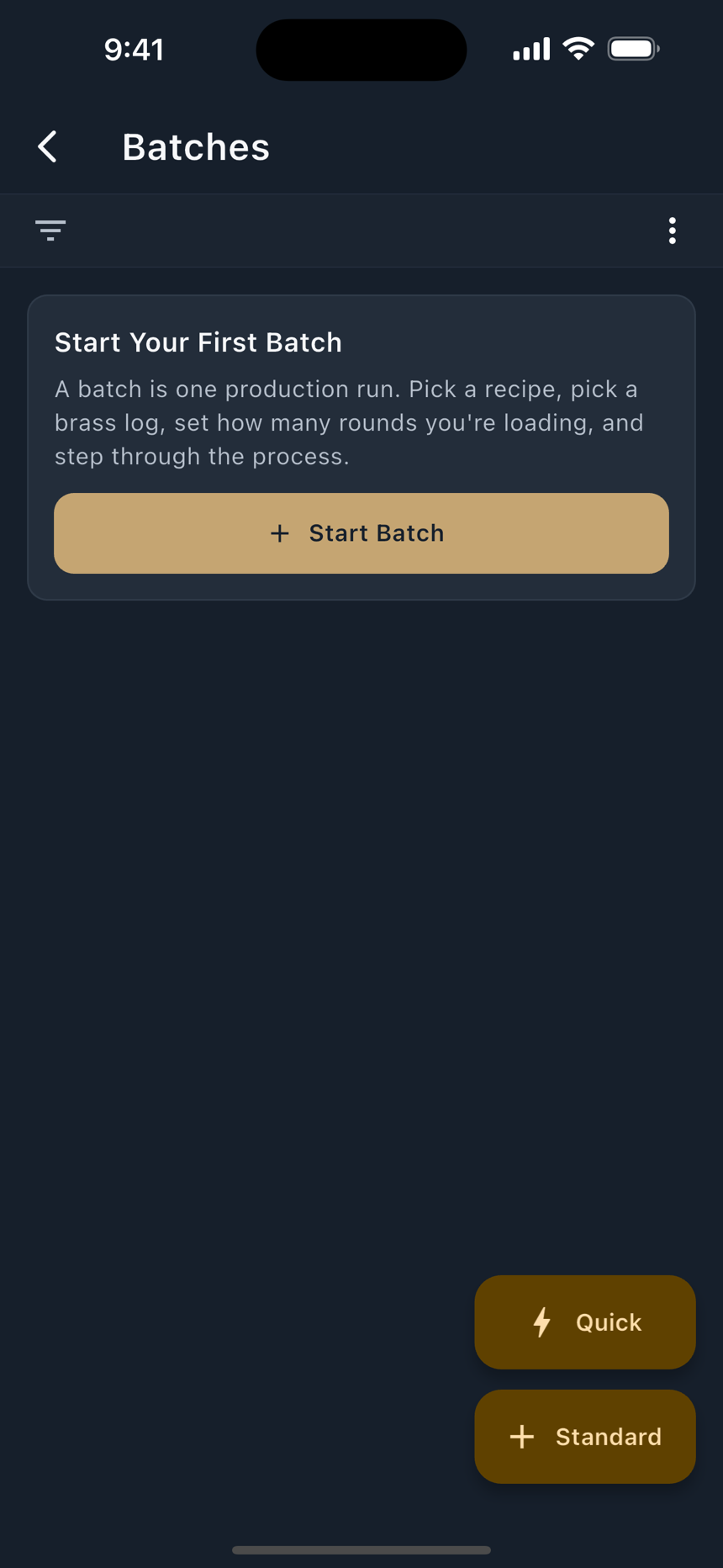
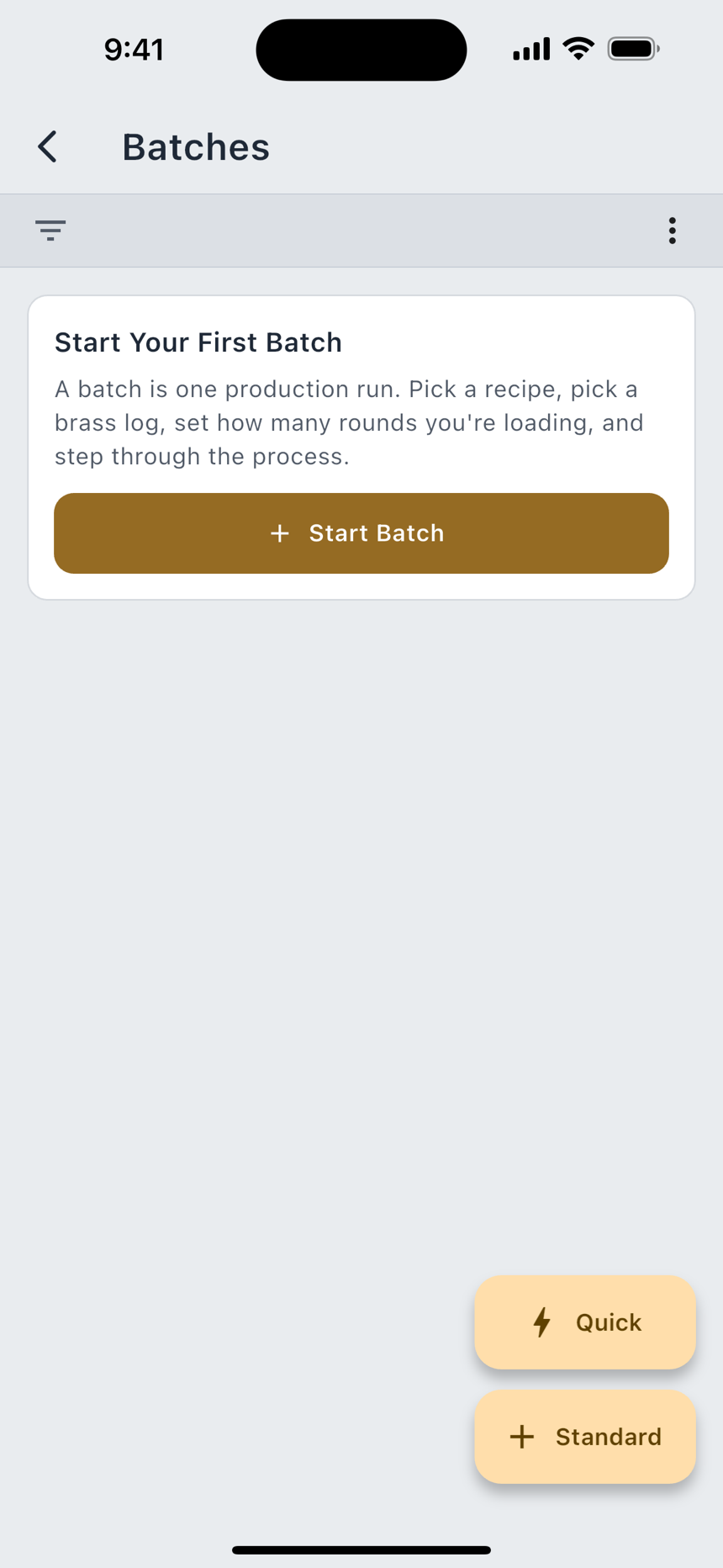
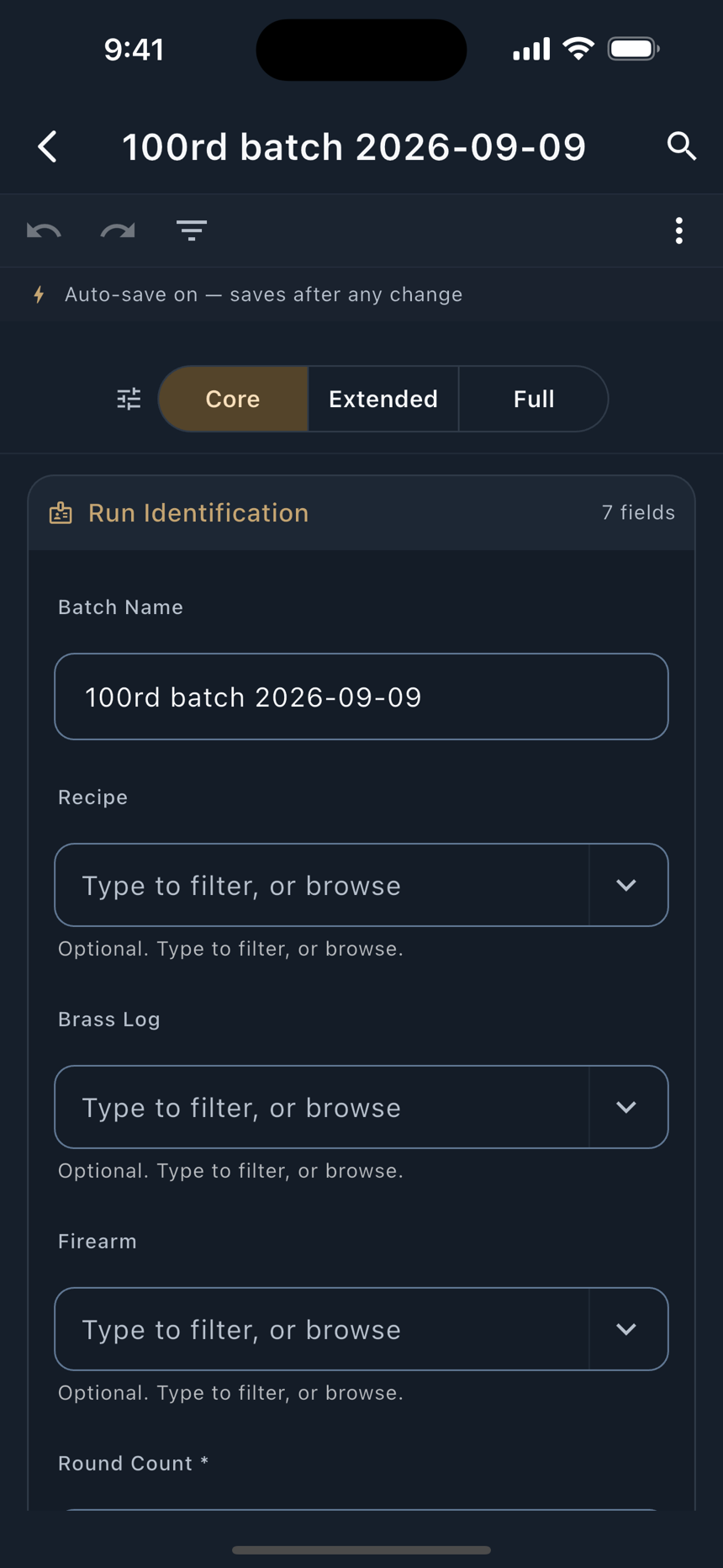
- Start the run. On Bench › Batches, tap the FAB. Quick asks for three things, Recipe, Count and Loaded On, then saves. Switch to Detailed carries what you have typed into the full form.
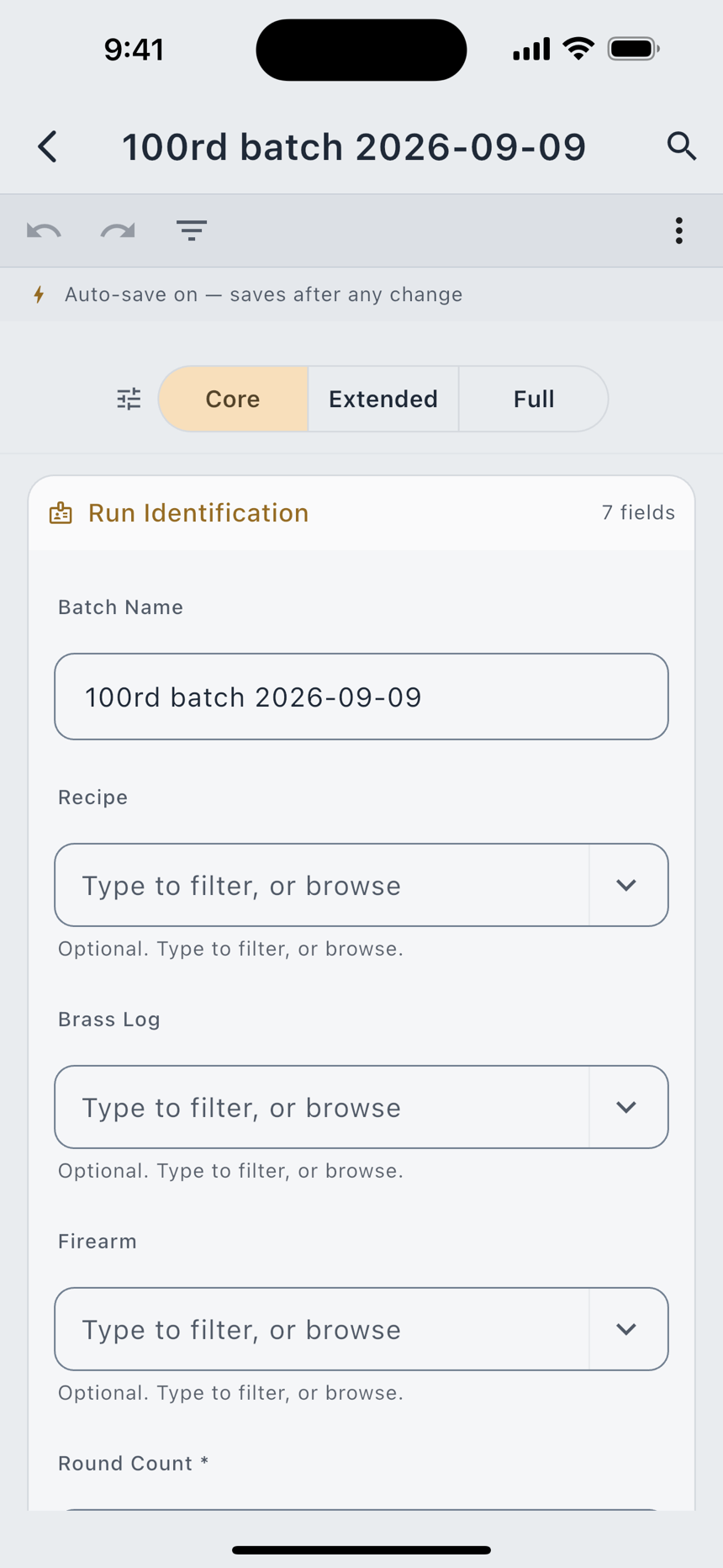
- Name it and size it. The full form takes a Batch Name, a Round Count (required, and it must be a positive integer), and Notes.
- Bind the components. Pick a Recipe, a Brass Log lot, and a Firearm. Each picker can create a new record without leaving the form. The brass picker filters to the batch's caliber; Show All Calibers lifts that filter when you need it to.
- Work the checklist. Open the saved batch and tick each stage as you complete it. The state persists as you tap, so you can put the phone down mid-session.
- Record what you shoot. Tap Fire Rounds after a range trip and enter Rounds Fired.
The process checklist
Every batch carries its own copy of your reloading process. LoadOut seeds eight standard stages on first launch:
| Stage | What it covers |
|---|---|
| Inspect & Sort Brass | Check each case for damage, then group by headstamp and lot before starting case prep. |
| Resize / Decap | Return fired brass toward chamber-ready dimensions and remove the spent primer. |
| Trim, Chamfer, Deburr | Bring case length back into spec, then bevel the inside and outside of the case mouth. |
| Anneal | Optionally relieve work-hardening in the case neck and shoulder. |
| Prime | Seat a fresh primer into a clean, prepared primer pocket. |
| Charge with Powder | Drop a verified, weighed powder charge into each primed case. |
| Seat Bullet | Press a bullet into the charged case to the depth your recipe specifies. |
| Final Inspection / Crimp | Optionally crimp, then verify the finished round against a gauge or chamber. |
The list is yours to change. Settings › Reloading › Reloading Steps is where you rename a stage, edit its description, drag it into a new order, add a custom step, or set which caliber types it applies to: Pistol, Rifle, Shotgun, or any combination. A batch only shows the steps that match the type of the cartridge in its recipe, so a pistol run does not ask you about neck turning.
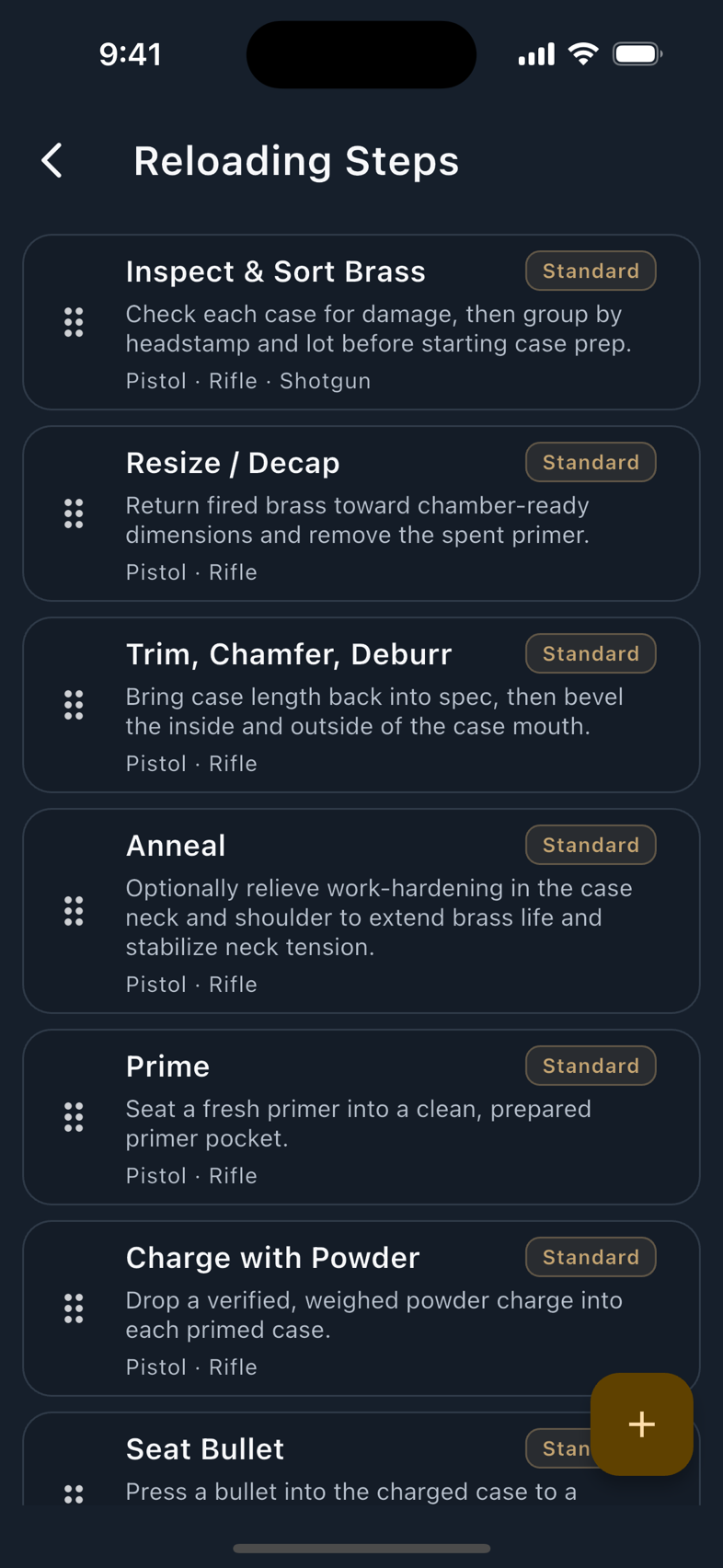
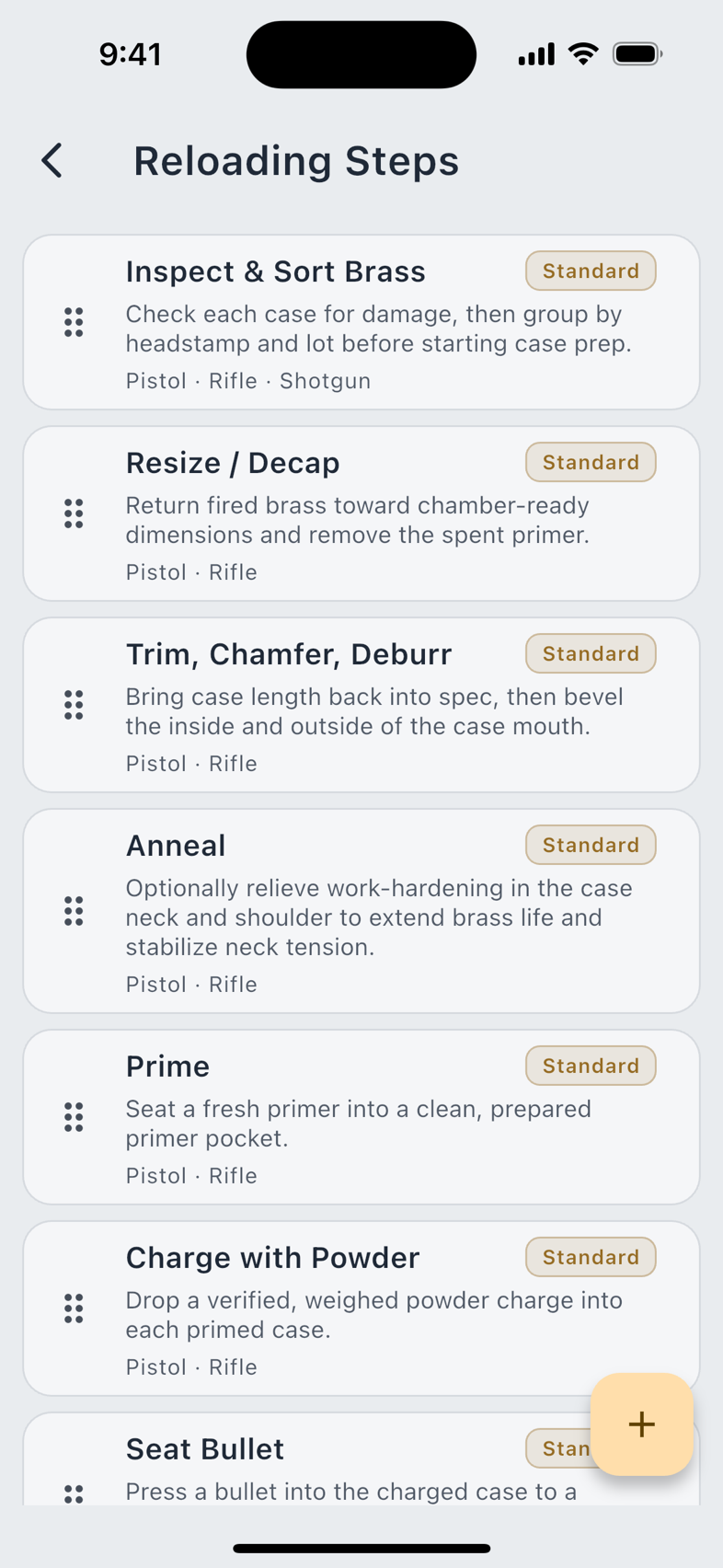
The eight seeded stages carry a Standard pill. You can rename them, re-describe them, re-order them, and change which calibers they apply to, but you cannot delete them, because old batches reference those names in their saved checklist state. Custom steps you add yourself can be deleted.
Two buttons sit under the checklist: Reset Checklist clears every tick, and Mark All Complete ticks them all.
Loaded and fired
The batch detail screen shows a single counter: fired over loaded, plus the rounds remaining. Fire Rounds opens the Record Firing dialog, which tells you how many rounds are left and takes a Rounds Fired count. The button disables itself once the batch is shot out, so a batch cannot record more rounds fired than it ever held.
The list shows where each batch stands with a status pill: In Process, Loaded, or Fired Out.
The Brass Log
One lot, one entry. The app's own definition, from the Track Your Brass lesson: a lot is one batch of cases you treat as a unit: bought together, fired together, retired together. Split a lot and you make a second entry; merge two and you are lying to yourself about the firing count on half of them.
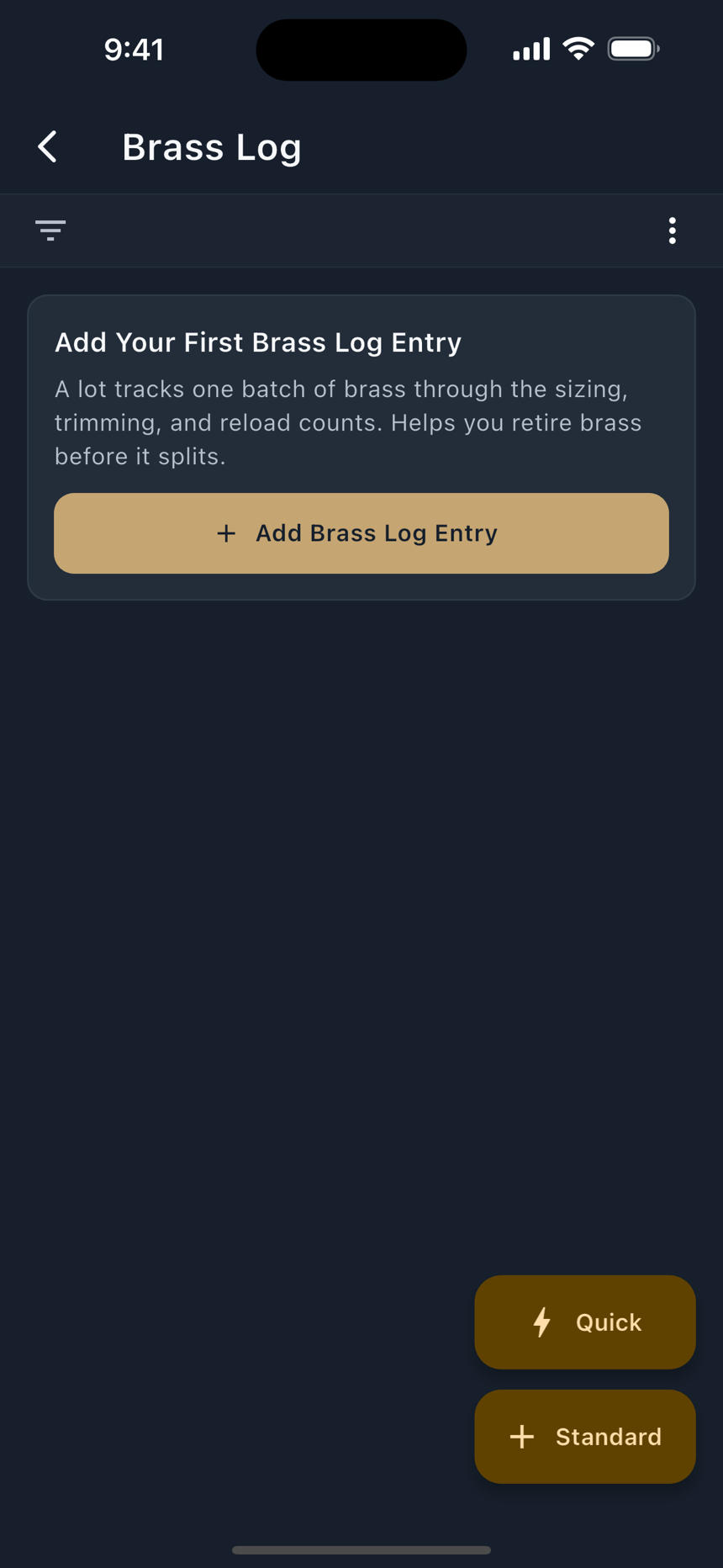
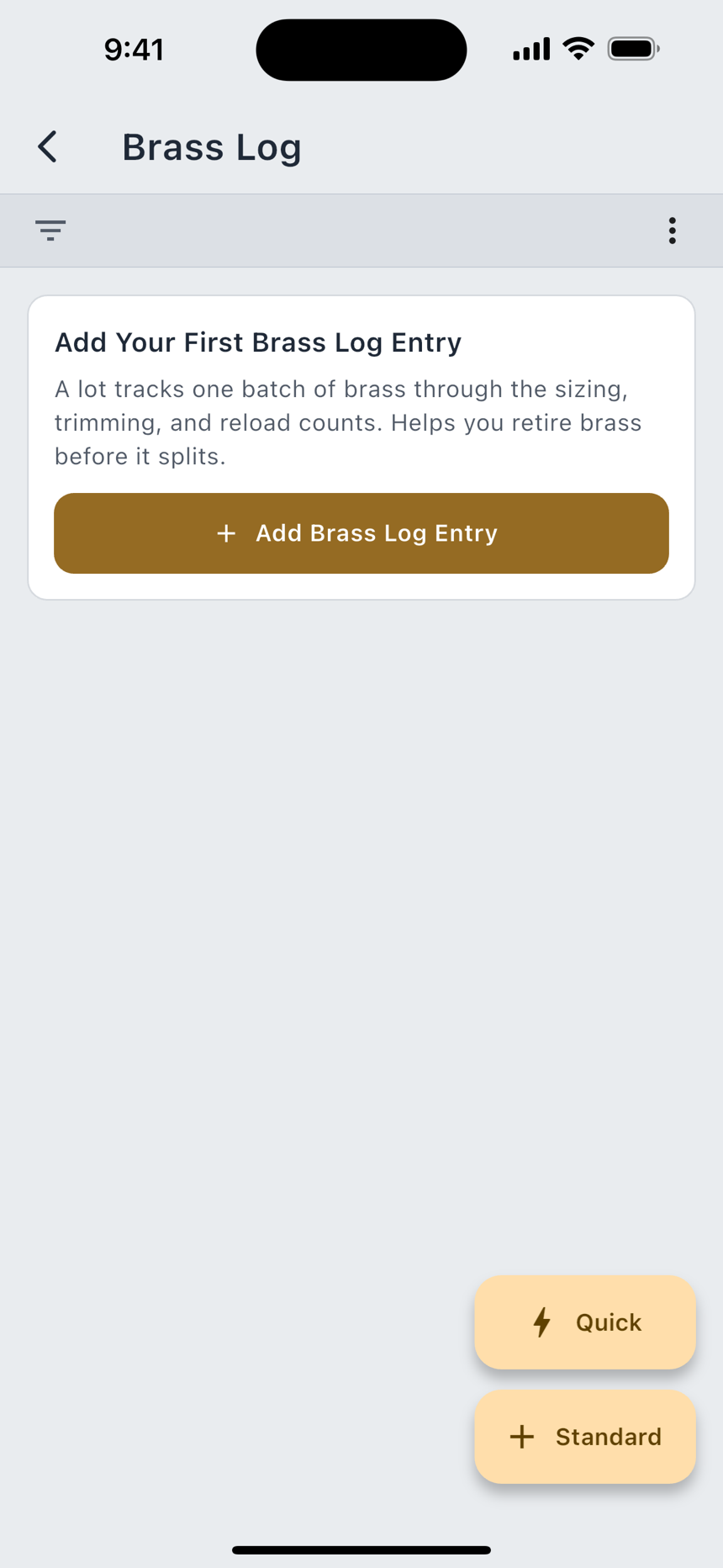
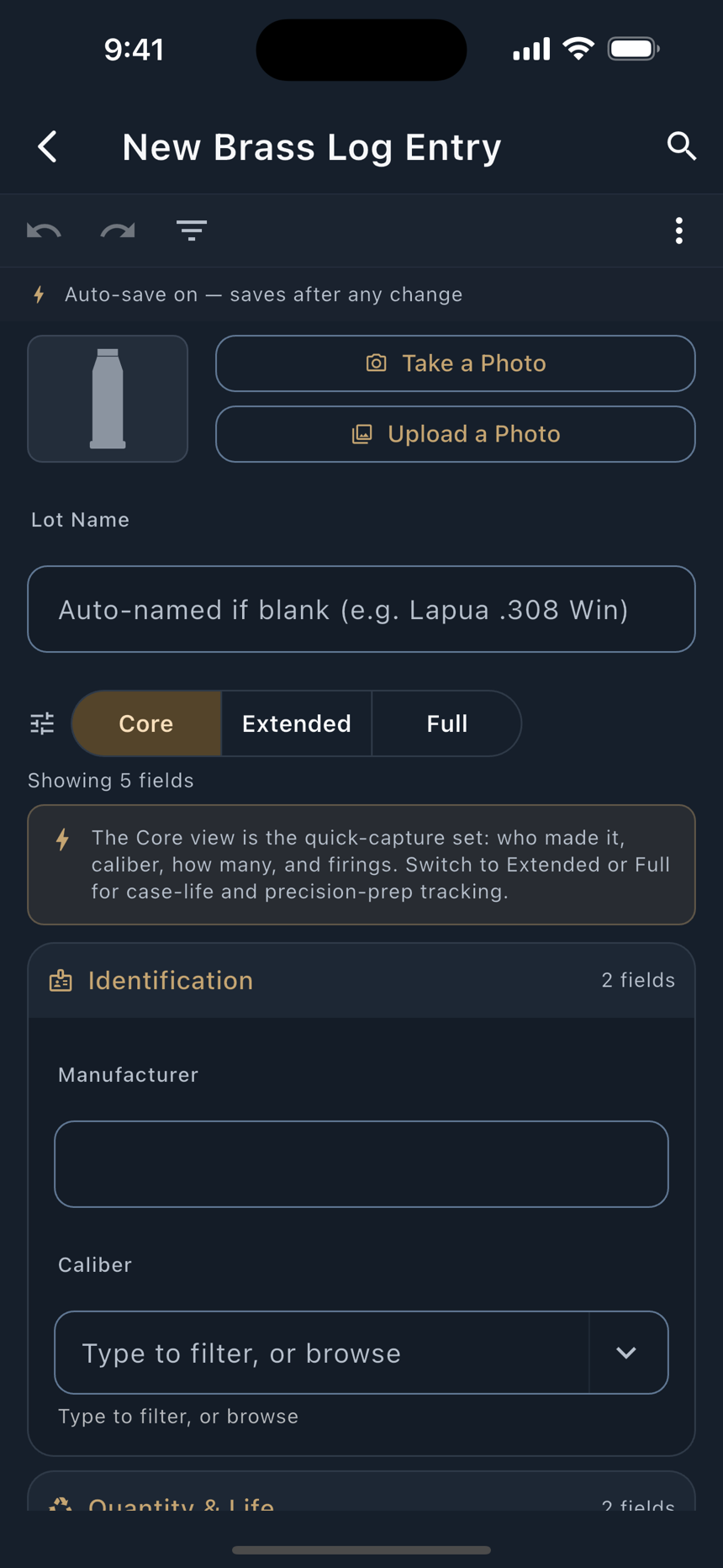
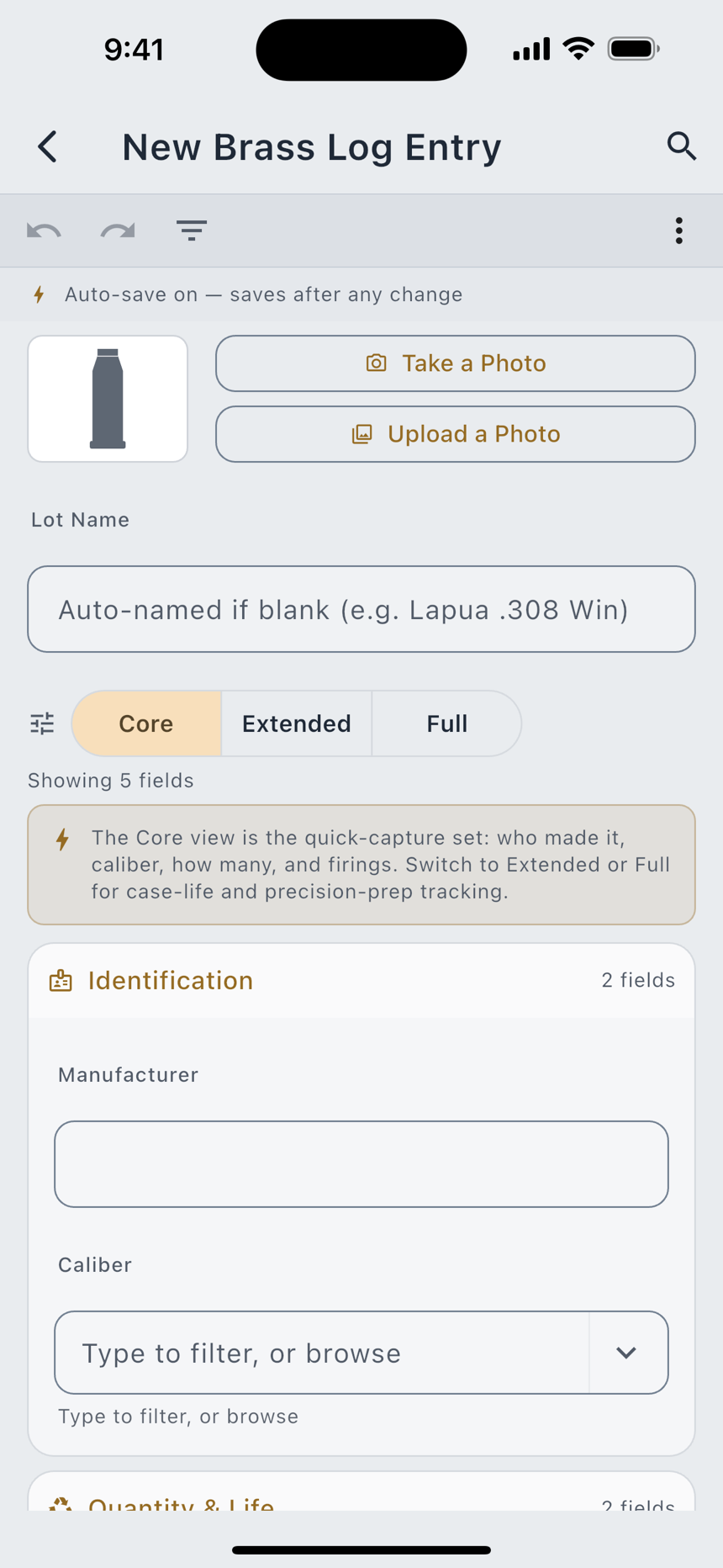
The same two-button FAB pattern applies. Quick opens Quick Add Brass Log Entry and asks three things:
Core, Extended, Full
The full record uses the same three-tier view control the rest of the app uses. A lower tier hides fields; it never deletes what you entered.
| View | What it shows |
|---|---|
| Core | The quick-capture set: who made it, caliber, how many, and firings. |
| Extended | Adds case-life tracking: headstamp and lot number, when and how it was annealed, average brass weight, and case capacity. |
| Full | Every brass field, adding precision prep: trim lengths, neck wall thickness and turning, primer pocket and flash hole work, and notes. |
The prep fields at Full are the ones a precision reloader actually tracks per lot: Trim To Length and last trim length, Neck Wall Thickness, whether the necks were turned and to what depth, whether the primer pockets were uniformed, and whether the flash holes were deburred.
There is no Save button on the brass record, and that is deliberate: it saves as you type. Back out whenever you like.
After a range trip
Once a lot is saved, three quick actions appear on it:
Annealing resets the clock. Heating the case necks briefly softens brass that has work-hardened, so a lot's useful life is measured from the last anneal, not from the day you bought it. The list flags a lot with an Anneal Soon pill once it has been fired five times and has never been annealed.
Firings tell you when a lot is done, not age and not how the cases look. It is the one component record that keeps growing, and it is the reason a lot is worth a record at all.
Component Inventory
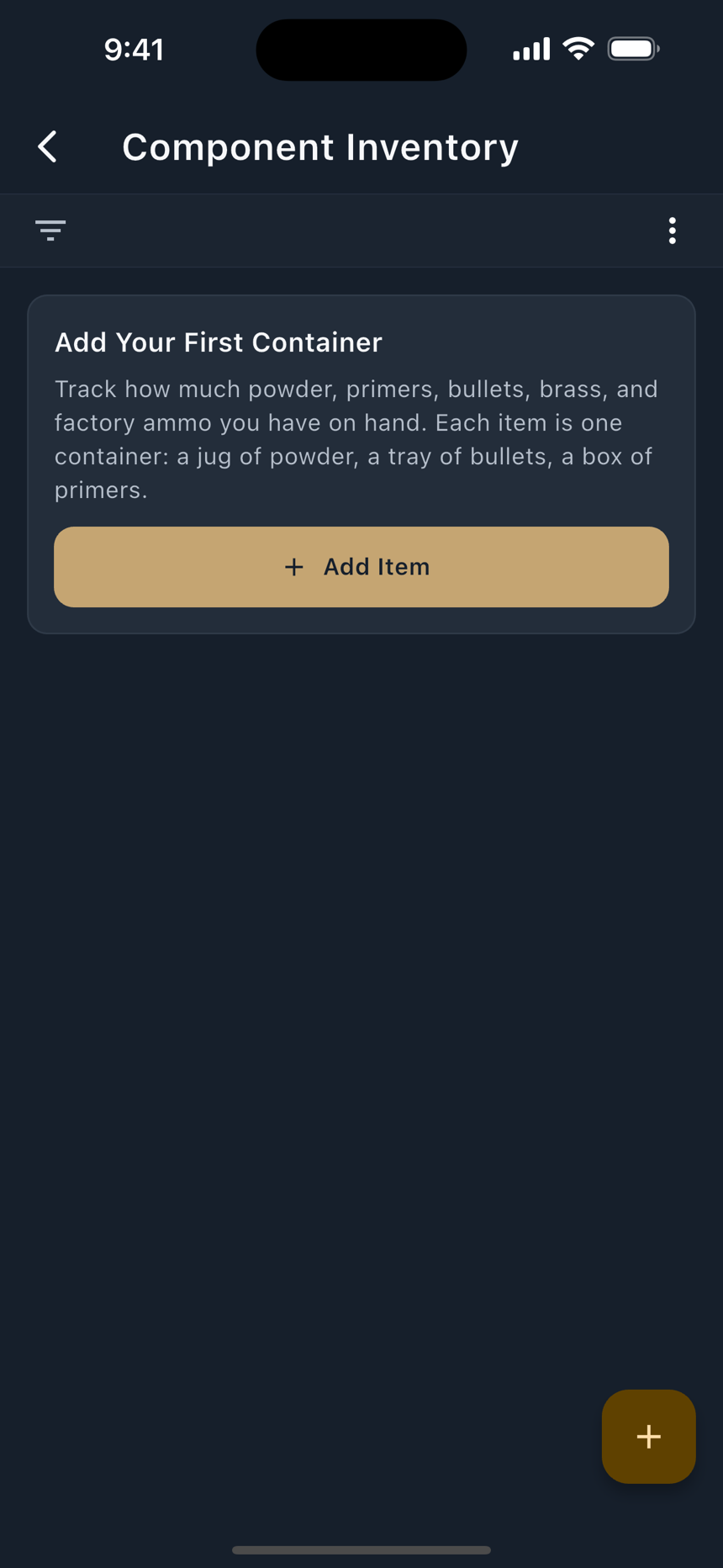
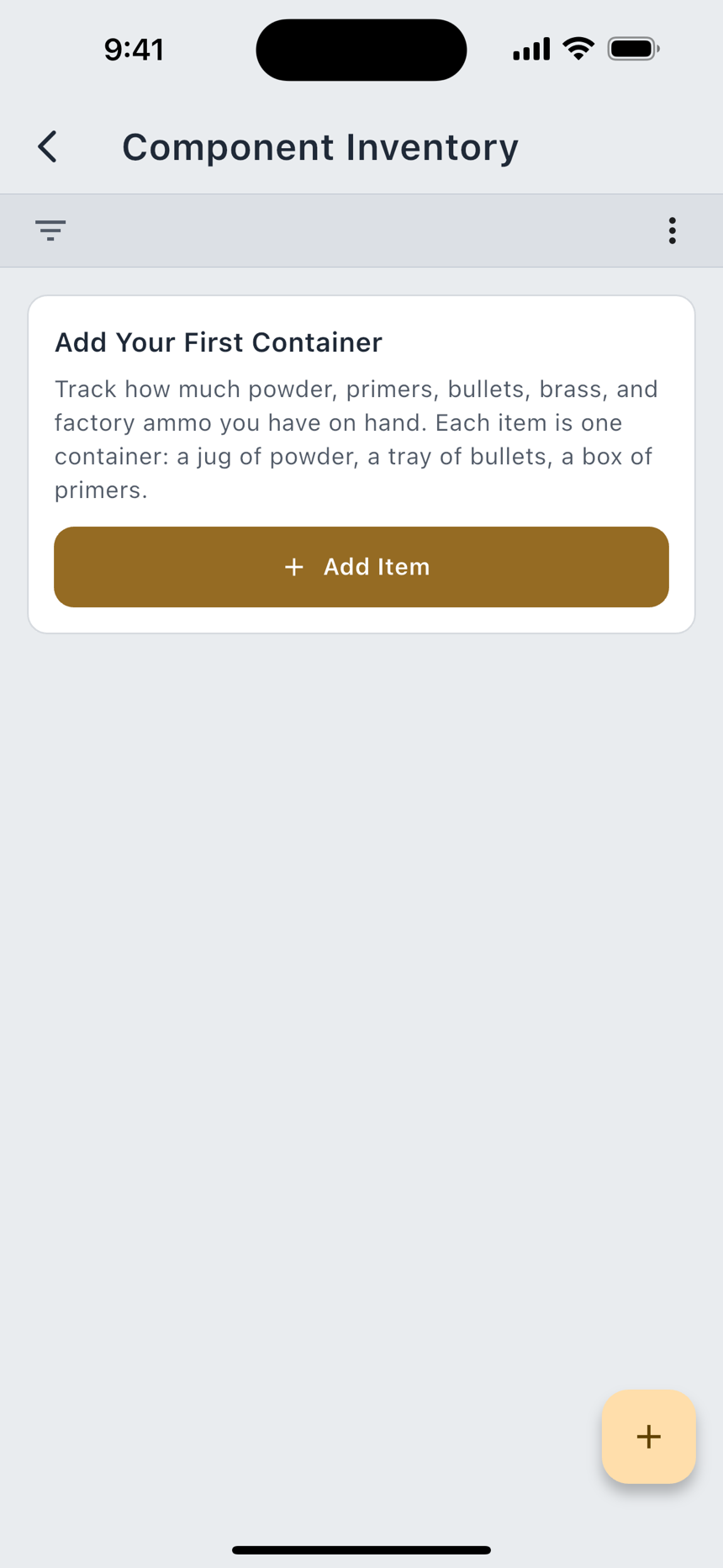
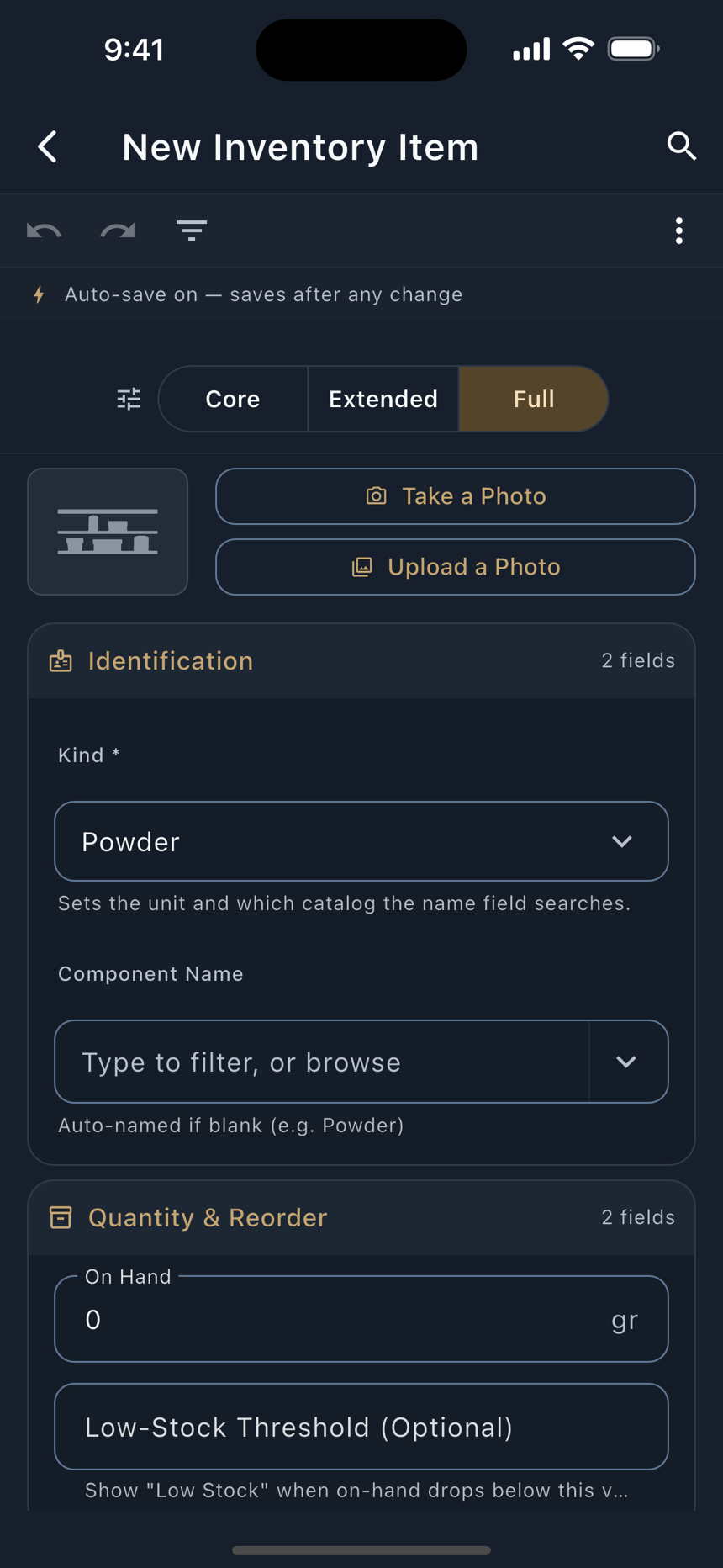
What is on the shelf, in the unit each component is actually measured in. Powder is tracked in grains, not pounds, because grains is what a recipe consumes.
| Kind | Unit | Shown when |
|---|---|---|
| Powders | gr | Always |
| Primers | ct | Always |
| Bullets | ct | Always |
| Brass | ct | Always |
| Factory Cartridges | rd | Always |
| Hulls | ct | Shotgun Information facet on |
| Wads | ct | Shotgun Information facet on |
| Shot | lb | Shotgun Information facet on |
Shot is the odd one out and correctly so: it is sold and kept on hand by weight, not by piece count.
An item takes a Component Name, its On Hand quantity, and four optional fields: Low-Stock Threshold, Unit Cost (USD), Lot / Batch Number, and Opened On. The kind is locked once the item is saved, because the unit follows the kind and a container of powder does not become a box of primers.
Quick Adjust and the audit log
Every change to a quantity goes through Quick Adjust, which takes a Subtract or Add amount and an optional note. The change lands in the item's Adjustment History alongside the running total, in one transaction, so the number on the shelf and the record of how it got there can never drift apart. If a subtraction would take the count below zero the running total clamps at zero, but the log keeps the delta you actually entered, because the audit trail should tell the truth even when the arithmetic underran.
Inventory lives on the Bench, one level down, on purpose. It is not on the bottom nav and it is not promoted anywhere else in the app. It is here for the reloaders who want it, and invisible to the ones who do not.
How the three connect
A recipe is the plan. A batch is one execution of that plan against a specific lot of brass and a specific rifle. The brass log is what survives the batch and gets loaded again. Inventory is the pile the batch came out of.
The links are real records, not tags. A batch that names a recipe, a brass lot, and a firearm gives you three ways to find it later: from the recipe you were testing, from the lot you were tracking, or from the rifle you shot it out of. Search matches on all of them: the batch name, its notes, and the names of everything it points at.
What LoadOut does not do is deduct from inventory automatically when a batch is loaded. That trigger has no honest place in an autosaving form: deducting on every keystroke would be worse than not deducting at all. Quantity changes stay a deliberate act you perform with Quick Adjust.